

Document Sample Collector
The Document Sample Collector is an application that is used to save .sample files of scanned documents in an GBG proprietary format. The .sample file is encrypted to protect the sensitive personally identifiable information (PII). The data contained in the .sample file includes document images, magnetic stripe data, barcode data, and contactless chip data (if available). By default, captured document images are stored in the following directory:
C:\Users\Public\Public Documents\My AssureID Data\CollectedSamples
Note: This location will be different if an alternate data storage location was chosen during the installation process.
To start the Document Sample Collector application, click Start > AssureID > Document Sample Collector.
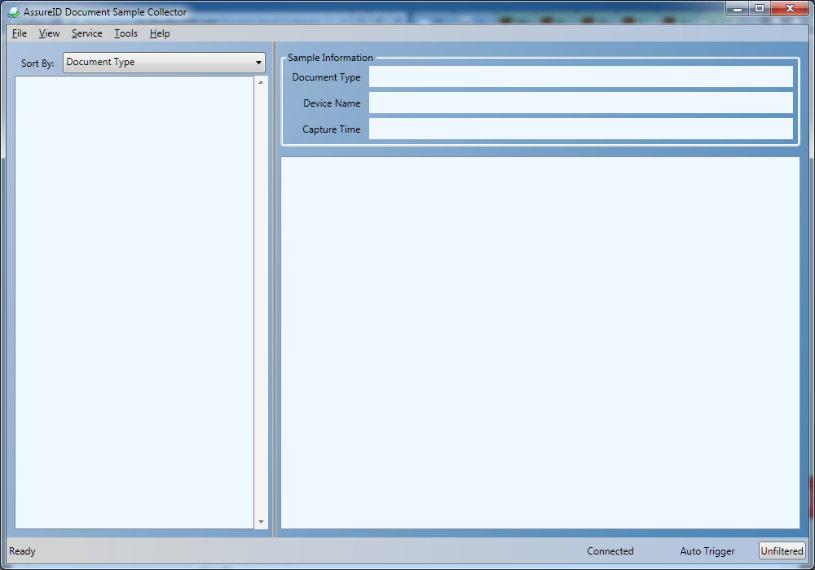
When you start the application, AssureID parses the CollectedSamples directory for available samples. If the directory doesn’t exist, you must specify a location to save the samples. Use View > Refresh Sample List or F5 on the keyboard to refresh the list at any time.
These samples are organized in the sample list and sorted by the selected sort order. By default, the sort order is by Document Type. Users may also sort by Capture Date, or by Document Reader.
Sort By & Grouping
Section titled “Sort By & Grouping”The list of samples is sorted and grouped based upon the selected sort order:
- Document Type – samples are grouped by document type (for example Driver’s License, VISA, Passport) and then sorted by capture date (most recent capture first)
- Capture Date – samples are grouped by capture date and then sorted alphabetically by document type
- Document Reader – samples are grouped by document reader (for example ID-150), and then sorted alphabetically by document type
Viewing Samples
Section titled “Viewing Samples”To view a sample, click an entry from the list of samples.
Additional information, such as the document type, device name and capture time is displayed if available. Images captured for the given sample also are displayed on separate tabs respectively (for example White, NearInfrared). If additional binary (non-image) document data was captured with the sample (such as magnetic stripe data, 2D barcode data, RFID chip data (for each available data group)), this data is displayed on its own tab. The display includes a Sample Information tab, which may contain, if available, additional information about the sample such as the version of AssureID Sentinel, as well as the version of the AssureID Document Library and additional information about the document reader used. This information is displayed only if it is available in the sample.
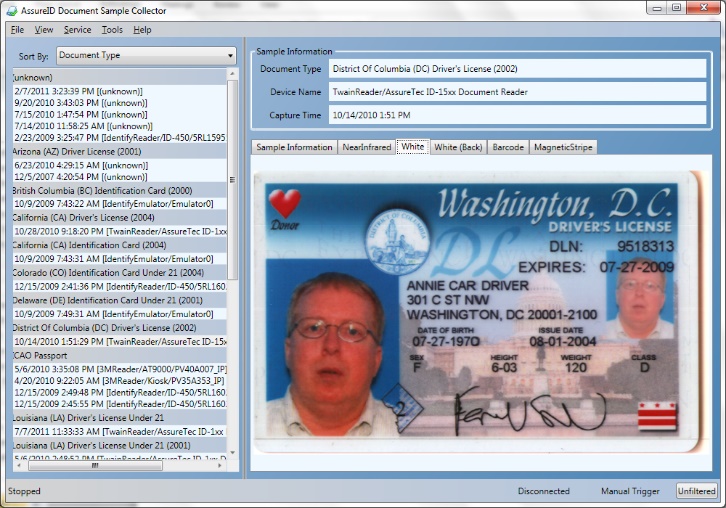
Right-click a sample in the list to display a context menu with additional functionality.
-
Show in Windows Explorer - Opens a Windows Explorer window and selects the sample’s
.samplefile.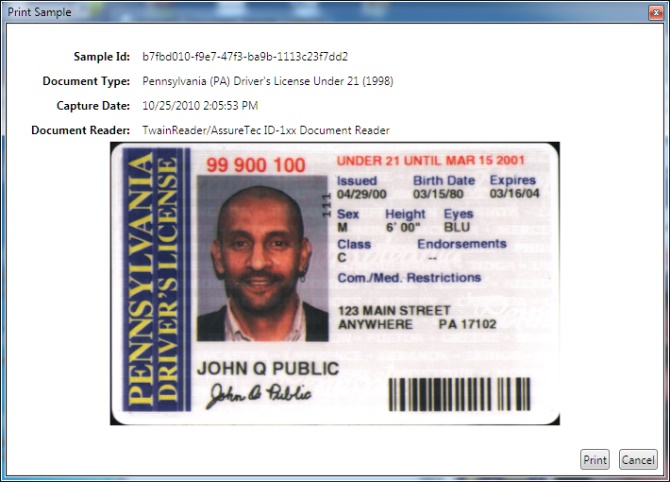
-
Review Sample - Available if the AssureID DAP service is running, reruns the selected document sample through the AssureID service. Note that a new document sample will not be available for AssureID document transactions run from document samples.
-
Print Sample - Print a quick report of the selected sample.
Filter
Section titled “Filter”By default, the Document Sample Collector application collects a sample of any document processed by AssureID Sentinel while the application is running. This collection mode is indicated by the text on the Unfiltered link in the lower right corner of the application’s main panel.
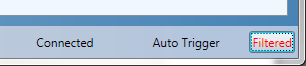
You can modify the document collection filter from the AssureID Document Sample Collector Filter dialog box. By default, samples from all documents are collected. If you modify the collection filter, the color of the Filter button changes to red.
Menu System
Section titled “Menu System”The Document Sample Collector menu includes the settings described in this section.
| Setting | Description |
|---|---|
| File | |
| Open Sample | Opens a document sample by selecting if from a file selection dialog. The sample can reside anywhere on the system or externally to the system (for example on a flash drive). Users may change the file filter in the open file dialog to filter for different file types. |
| Delete Sample | Deletes a selected sample from the list of available samples. |
| Import Sample | Selects a document sample to be imported into the currently configured CollectedSamples directory. Additionally, the Document Sample Collector will also check to see if the sample being imported already exists in the target directory. If the sample already exists, then it will not be re-imported. |
| Exit | Exits the application |
| View | |
| Refresh Sample List (F5) | Refreshes the list of available samples (alternatively press F5 on the keyboard) |
| Service | |
| Restart AssureID Service | Manually restarts the AssureID service |
| Stop AssureID Service | Manually stops the AssureID service |
| Auto Trigger | Manually enables or disables the automatic collection of documents when they are inserted into a supported reader |
| Capture from Device | Manually captures a document (such as if they want to scan the same document a second time without removing the document from the reader). When a scanner/reader is connected, the name of that device will be listed to the right of the Capture from Device menu. The most recently used reader will be triggered by using Ctrl+T (for trigger). If only one reader is available, that reader may be triggered by using Ctrl+T. Note that since document samples are not available for “virtual” document readers (such as i-Dentify Emulator), only physical document readers are available on this list of readers. |
| Review Sample | If the AssureID DAP service is running, this command will rerun the selected document sample through the AssureID service. Note that a new document sample will not be available for AssureID document transactions run from document samples. |
| Document Detect Enabled | Manually enables or disables Document Detection. When Document Detection is enabled, the image capture will begin as soon as the document is detected by the reader (either on the glass of the reader, or in the inlet of the scanner). |
| Duplex Enabled | Enables or disables duplex mode for subsequent document transactions. Duplex mode indicates to AssureID that for document readers capable of capturing only one side of a document at a time. The user application will display a message instructing the user to manually flip a document in the reader at the appropriate time during the capture process. |
| Cancel Document | Manually cancels the collection of a document. Alternatively, use the Ctrl+Z keyboard shortcut. |
| Tools | |
| CollectedSamples Directory | Specifies the directory for Collected Samples to be stored by clicking Browse and then specifying the desired folder. |
| Compress sample images | Compresses the size of the sample images to save space. GBG recommends that this option remain checked, as it helps conserve disk space while still retaining the image quality of the given sample. |
| Allow Samples to be sent to GBG via Email | Contact Technical Support to automatically send samples to GBG. |
| Help | |
| About | Displays the product version |
To save settings specified in Options, click OK. You also can reset all settings to their defaults by clicking Default. To cancel any changes made, click Cancel.