

Sounds tab
AssureID supports sound profiles to allow for a richer user experience when documents are authenticated.
Assign or change the sound profile
-
In AssureID Settings, click the Sounds tab.
The default profile selected is AssureID Default, which uses default sounds assigned to Attention, Caution, Failed, Passed, Unknown, Document Inserted, and Remove Document events. You also can choose to mute sounds entirely by using the No Sounds profile.
-
To change sounds, click any event in the Event window, and then select a sound to apply to the event. You can assign a sound to the following service events:
| Document Result | Operation | Remove Document | |
|---|---|---|---|
| Attention | Document Inserted | System Error | |
| Failed | Flip Document | ||
| Passed | Reader Online | ||
| Unknown | Reader Offline |
-
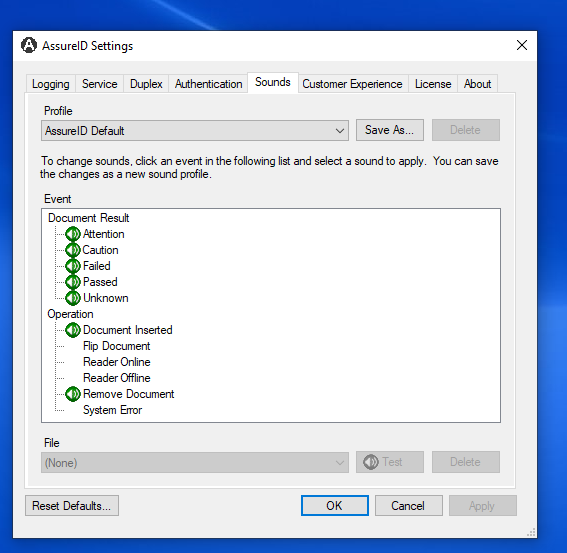
You also can create a custom sound profile. Select an event from the list and click the File drop-down list to select a .wav file to associate with the event. You can choose an existing sound from the list or choose Browse to browse to a location containing the desired .wav file to be played for that event. After a sound has been selected using the Browse method, it is imported into the list and is available to use for any other event. When an event is given a different sound other than that defined by the default profile, the profile name is changed to [Profile Name] (modified) for example:

-
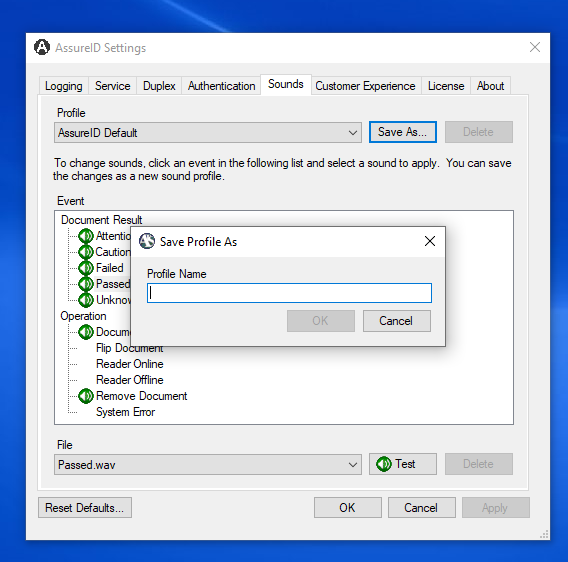
Click Save As to save the new profile settings under a new profile name. For example:
-
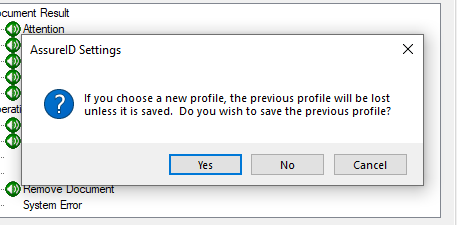
If you make changes to the current profile, but do not save them, you receive the following prompt:
-
Click Yes to save the profile changes.
Copy a sound profile
Section titled “Copy a sound profile”You can copy sound profiles to other machines running AssureID by copying the AssureTec.AssureID.Platform.SystemTray.sounds file located in C:\Program Data\AssureTec\AssureID. The sound profile file includes any sounds imported into a sound profile. Therefore, there is no need to copy the original sounds used to the target workstation.
Delete a sound profile
-
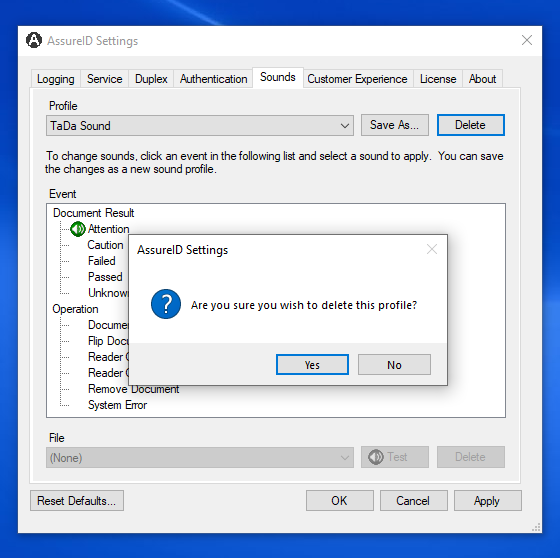
In the Sounds tab, select a profile name from the Profile drop-down list.
-
Click Delete. The AssureID Settings confirmation dialog box opens.
-
Click Yes.