Install the device drivers
This section describes how to install the AssureID device drivers. If you are using a natively supported device, then you must install the drivers. If you are using the DocumentWriter interface, the AssureID drivers are not required. GBG recommends that you install the drivers before you install the AssureID software. The minimum recommended version of the Identify drivers is version 3.0.x.
Important: Make sure that your device is disconnected from the computer before installing the drivers.
Install the AssureID device drivers
-
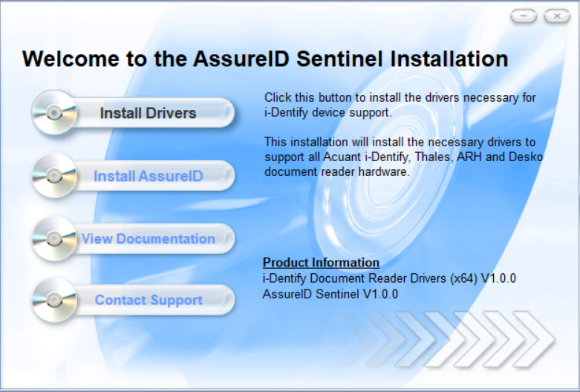
Click Install Drivers.
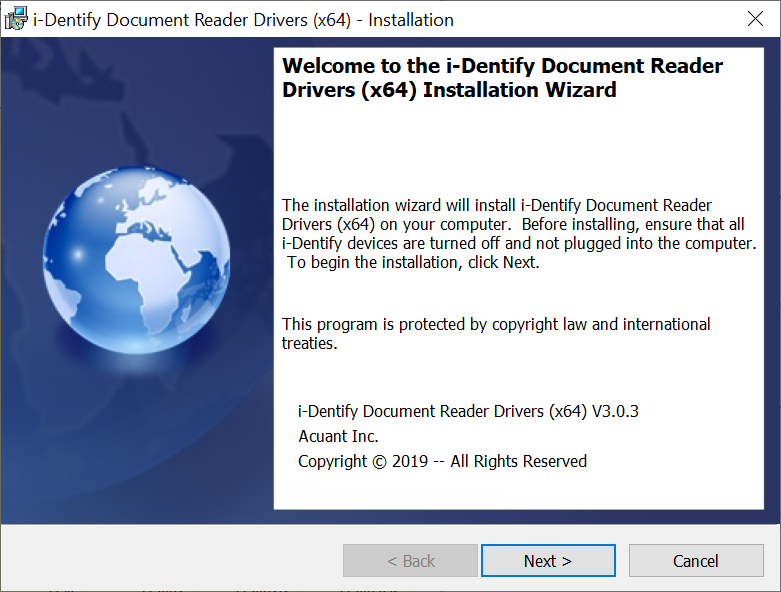
The Welcome to the i-Dentify Document Reader Drivers (x64) Installation Wizard starts.
-
Click Next.
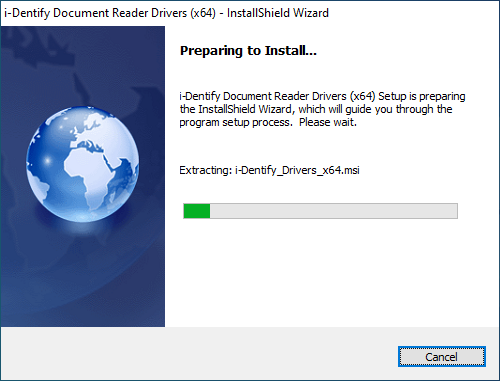
The Preparing to Install window opens:
-
Click Next. The License Agreement window opens. After reading the License Agreement, select the I accept the terms in the license agreement option, and then click Next.
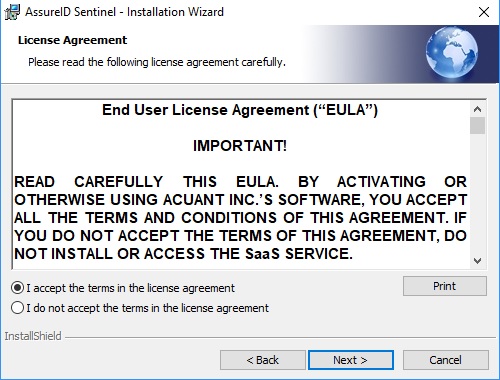
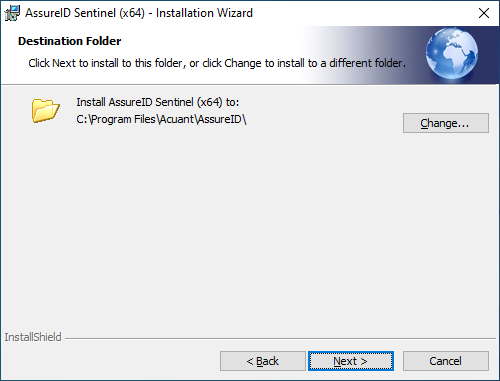
The Destination Folder window opens.
-
Accept the default location or click Change to select another location. Click Next.
-
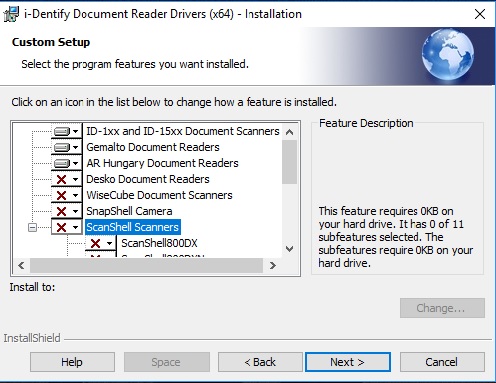
Select Complete to install the drivers for the ID-1xx, ID-15xx, Gemalto/Thales, and AR Hungary devices. Select Custom to install only certain drivers (such as DESKO, WiseCube, ScanShell, and SnapShell), and then click Next.
-
If you select Custom, the Custom Setup window opens. Select the devices to install and the location of the installation.
-
Click Next. The Ready to Modify the Program window opens.
-
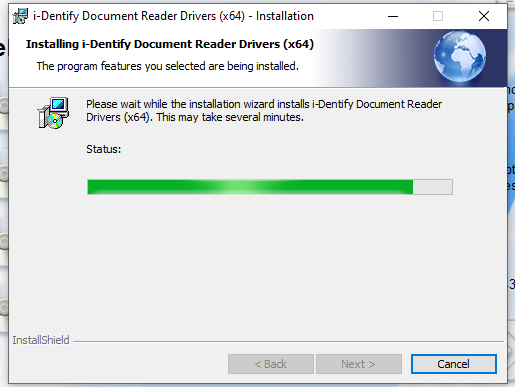
Click Install. The Installing i-Dentify Document Reader Drivers (x64) window displays the installation progress:
-
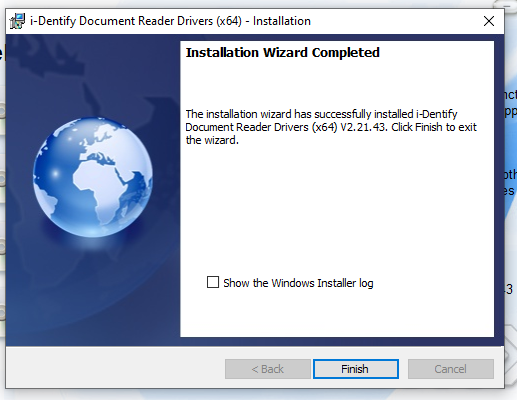
When the Installation Wizard Completed window opens, click Finish: