

Service tab
The Service tab provides configuration and control of the AssureID License Service. The HTTP/HTTPS port used by the AssureID License server is configurable. The default is 1955 (HTTP) or 443 (HTTPS), but it can be changed to suit your network requirements.
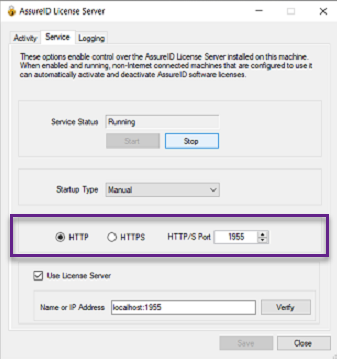
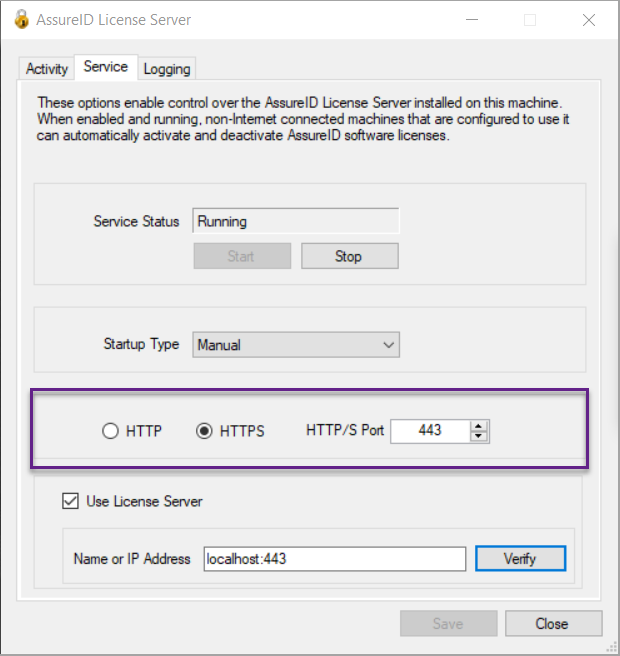
If you change the HTTP/HTTPS port on the AssureID License Server, all AssureID Sentinel clients must specify the port when entering the License Server address.
Note: Make sure that any software or network firewalls are configured to allow incoming traffic to the AssureID License Server on a configured HTTP/HTTPS port.
If you omit the optional port, the default port 1955 for unsecured (HTTP) or the default port 443 for secured (HTTPS) will be used.
Chaining multiple License Server instances
-
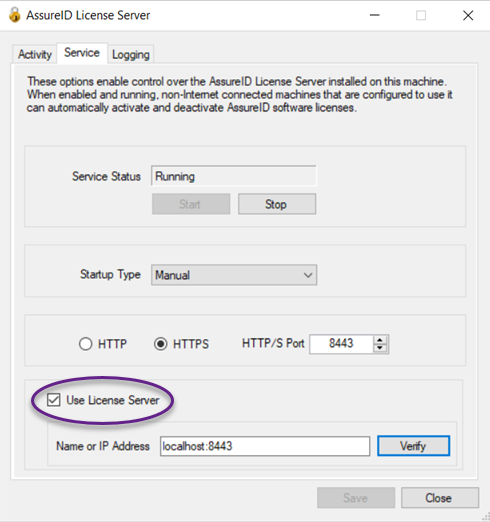
Select the Use License Server checkbox to configure the License Server to communicate to the upstream server.
-
Specify the hostname or IP address (and optional port) of the computer that has been configured as the AssureID local license server using the
[:optionalport]setting.-
If you omit the
[:optionalport]for http, the default port used is 1955. -
If you omit the
[:optionalport]for https, the default port used is 443.Note: If you change to HTTP or HTTPS and change the ports, first save the configuration.
-
-
Then Stop and Start the License Server.
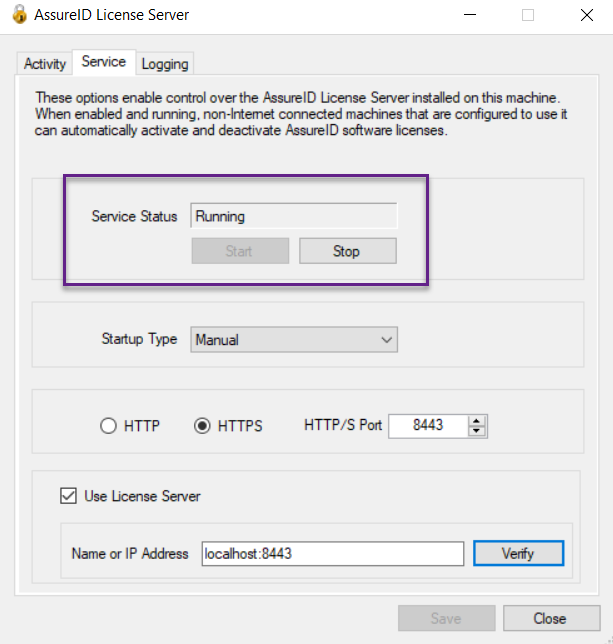
Note: If you want to use a secure (HTTPS) local host License Sever, you must configure the site as secured with certifications by using IIS website configuration as HTTPS on a secure port such as 8443 or 443.
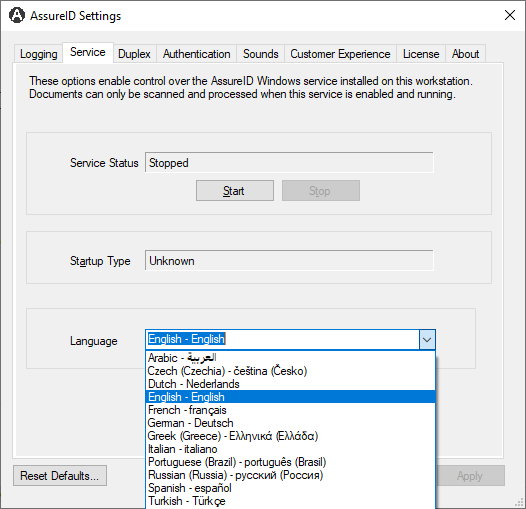
Service Status
Section titled “Service Status”From the Service tab, click Start or Stop to start and stop the AssureID Windows service. The current operating state of the service is displayed in the Service Status field and is automatically refreshed. The service Startup Type can no longer be modified from this tab for system security reasons.
Note: Only an Administrative user can modify the Startup Type. Go to Control Panel > Administrative Tools > Services.
Language settings
Section titled “Language settings”You can specify one of the following languages, or select Windows to provide output according to the default UI of the operating system (for backwards compatibility) if the language is one of the following:
-
Arabic
-
Czech
-
Dutch
-
English
-
French
-
German
-
Greek (Greece)
-
Italian
-
Portuguese (Brazil)
-
Russian (Russia)
-
Spanish
-
Turkish
-
Windows
Specify the language
-
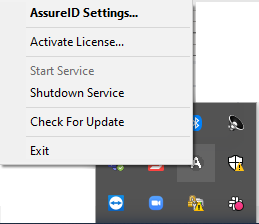
From the System Tray, right click the AssureID icon. The AssureID Settings window opens.
-
Click the Service tab.
-
Select a language from the Language drop-down list.
-
Click Apply, and then click OK.
-
When prompted by the System Tray application, restart the AssureID DAP Service.
-
If you want to restore the default system settings, click Reset Defaults.