

Install the software
Use the following procedure to install AssureID Sentinel.
Install AssureID
-
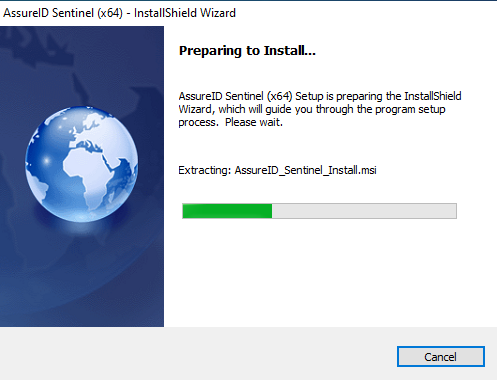
Launch the AssureID Sentinel installation. The Preparing to Install window displays the AssureID.msi extraction progress:
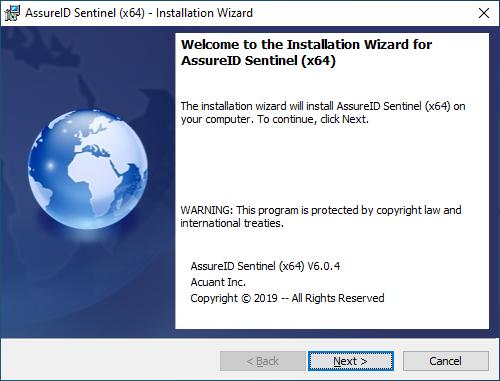
The Welcome to the Installation Wizard for AssureID Sentinel window opens:
-
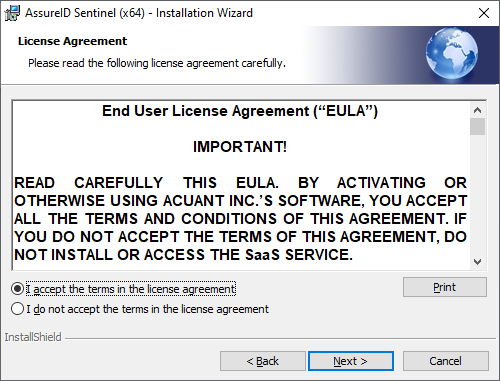
Click Next. The License Agreement window opens.
-
After reading the License Agreement, select the I accept the terms in the license agreement option and click Next.
-
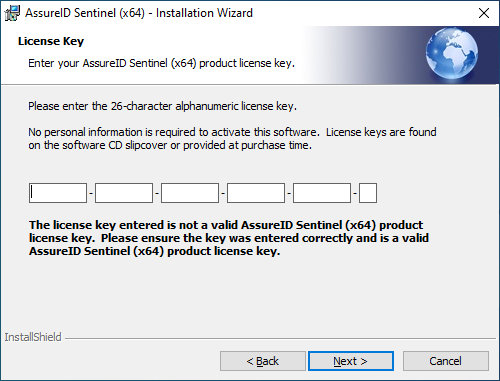
In the License Key window, enter the 26-character license key. The key is not case-sensitive.
-
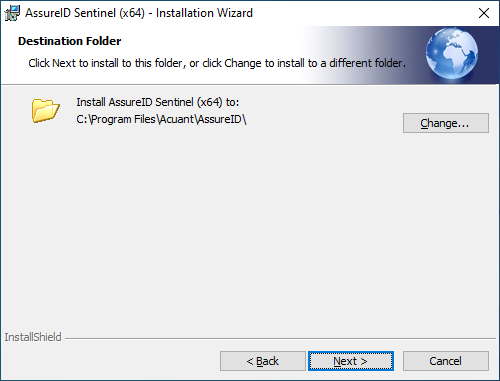
Click Next. The Destination Folder window opens.
-
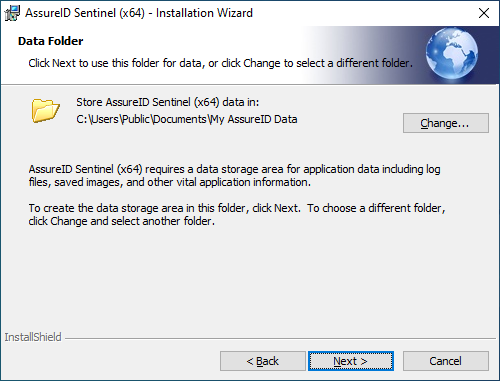
Click Next. The Data Folder window opens.
-
To use the default folder for data, click Next.
-
To change to a different folder, click Change.
-
-
In the Setup Type window, do one of the following:
-
To install all program features, select Complete and then click Next.
-
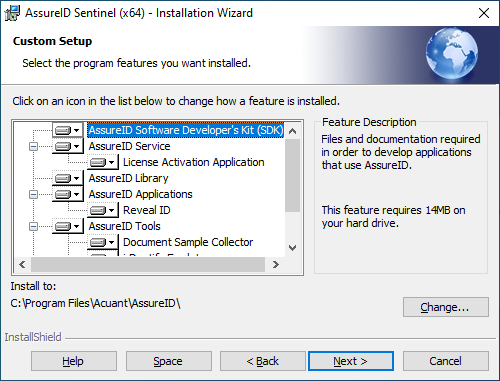
To install only certain program features, select Custom and then click Next.
-
-
In the AssureID Customer Experience Program invitation window, select an option, and then click Next.
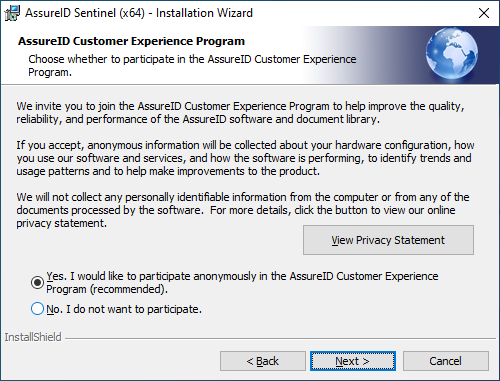
Note: GBG recommends that users opt to participate in the Customer Experience Program as it will help improve the product. GBG does not collect personally identifiable information (PII) from the computer or from any of the documents processed by the software.
-
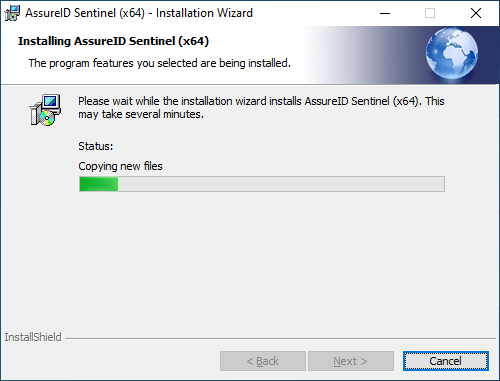
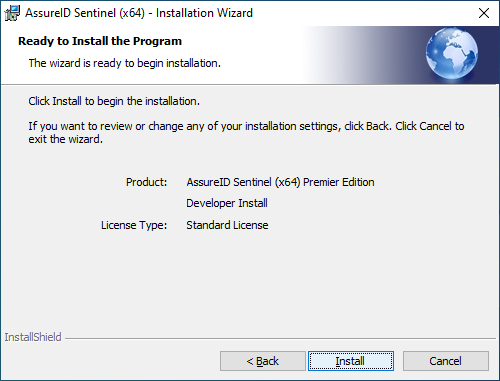
In the Ready to Install the Program window, click Install. The Installing AssureID Sentinel window shows the progress of the installation.
-
In the Installation Wizard Completed window, click Finish.
Enabling the AssureID icon
Section titled “Enabling the AssureID icon”If the AssureID service is running, the AssureID icon is visible in the System Tray (in the bottom right corner of your screen).

If the icon is not visible, use the following procedure to enable it.
Enable the AssureID icon in the System Tray
- Open File Explorer.
- Go to the C:\Program Files\Acuant\AssureID\bin folder.
- Double-click the AssureTec.AssureID.Platform.SystemTray file. The AssureID icon should now be visible in the System Tray.