

Configuring the License Server
The system tray displays a locked or unlocked ( or ) padlock icon that indicates the status of the License Server service. Hover the cursor over the icon to display the status. If the icon is not visible, click to open the system tray, and then click Activity & Settings:


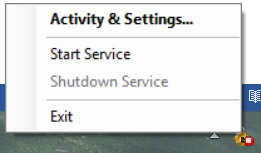
The Activity tab displays license activation activity for all computers that are configured to use the AssureID License Server. The Service tab provides configuration and control of the AssureID License service. The Logging tab provides control over the log files created by the AssureID License Server.
Configuring AssureID License Server to use a specified HTTP/HTTPS port
Section titled “Configuring AssureID License Server to use a specified HTTP/HTTPS port”The HTTP/HTTPS port used by the AssureID License server is configurable. The default is 1955 (HTTP) or 443 (HTTPS), but it can be changed to suit your network requirements.
Configure the HTTP/HTTPS port
-
On the Service tab, the Service Status displays whether the service is running.
-
Select the startup type from the Startup Type dropdown list.
-
Select either the HTTP or HTTPS option and select the port number from the HTTP/S Port dropdown list.
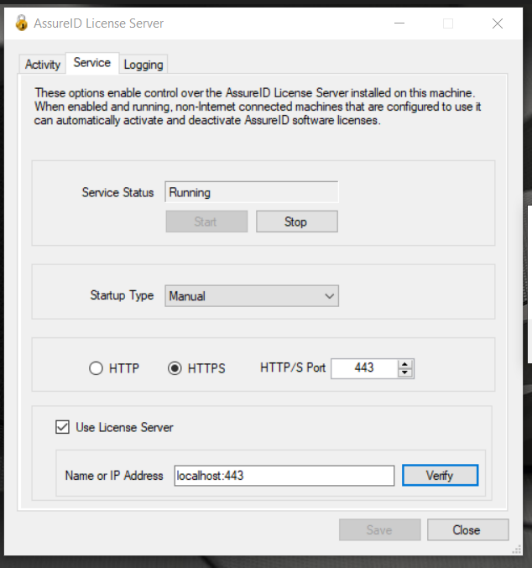
Note: Ensure that the chosen port is not blocked by the computer’s firewall. See the Service tab for details about configuring the port.
-
Optionally, select the Use License Server checkbox and enter the hostname or IP address (and optional port) of the upstream License Server, and then click Verify.
-
Click Close and then save your changes at the prompt.
Note: If you change the HTTP port on the AssureID License Server, all AssureID Sentinel clients must specify the port when entering the License Server address.
Chaining multiple License Server instances
Section titled “Chaining multiple License Server instances”If you are chaining together multiple License Server instances, you can configure this License Server to communicate to its upstream neighbor by selecting the Use License Server checkbox and indicating the hostname or IP address (and optional port) of the upstream License Server.
Use the following format for this setting:
<hostname-or-ipaddress>[:optionalport]
If you omit the optional port, the default port 1955 for unsecured (HTTP) or the default port 443 for secured (HTTPS) will be used.
Configuring your network firewall
Section titled “Configuring your network firewall”The AssureID License Server requires a connection to the central AssureID license activation service to operate. You must configure your network firewall to allow the AssureID License Server to communicate with the AssureID central license activation service. Check with your local IT administrators to ensure that your firewall allows communication through the chosen port.
Configure your network firewalls to allow HTTP (or HTTPS) traffic to the host and port:
| Hostname: | licensing.assuretec.com |
|---|---|
| Port: | 443 (default) or the port specified in Service tab configuration |
| URL: | licensing.assuretec.com /LicenseServer/Activator.asmx |
Configuring each AssureID Sentinel client
Section titled “Configuring each AssureID Sentinel client”Each AssureID Sentinel client must be configured to use the locally installed AssureID License Server. Before activating an AssureID Sentinel license on a computer, the software must be configured with the hostname or IP address and HTTP (or HTTPS) port of the AssureID License Server.
For more information about specifying the AssureID License Server address, see the License section.