

Duplex and Authentication tabs
Duplex tab
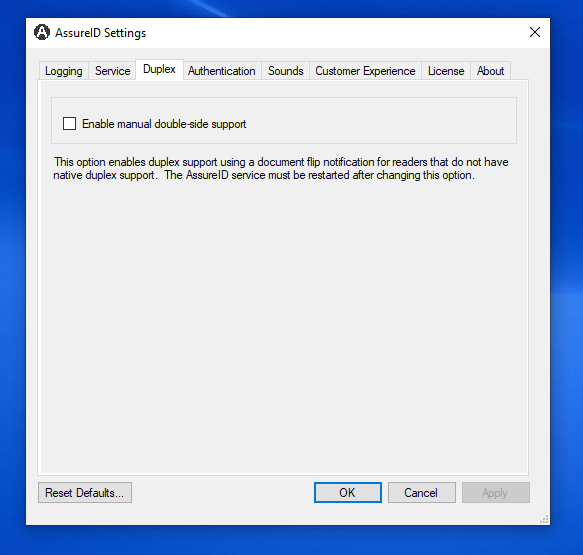
Section titled “Duplex tab”AssureID Sentinel supports manual double-sided support (Duplex), to enable capturing both sides of a document on a device that captures only one side at a time (such as a full-page reader), including the Gemalto/3M AT9000/MK2, Gemalto/3M Kiosk, Gemalto/3M KR9000, Gemalto/3M QS1000, 3M CR5400, ARH PRMc, ARH ComboScan, ARH KioskScan and DESKO PENTA devices. This mode supports the reading and extraction of data on the back of documents, such as 2D barcodes.
By default, Duplex (manual double-sided support) is disabled. However, you can enable Duplex mode for supported devices by selecting the Enable manual double-side support checkbox. Doing so results in a dialog box being displayed in Tutorial, Reveal ID, and custom applications invoking the Duplex settings to flip the document over
Authentication tab
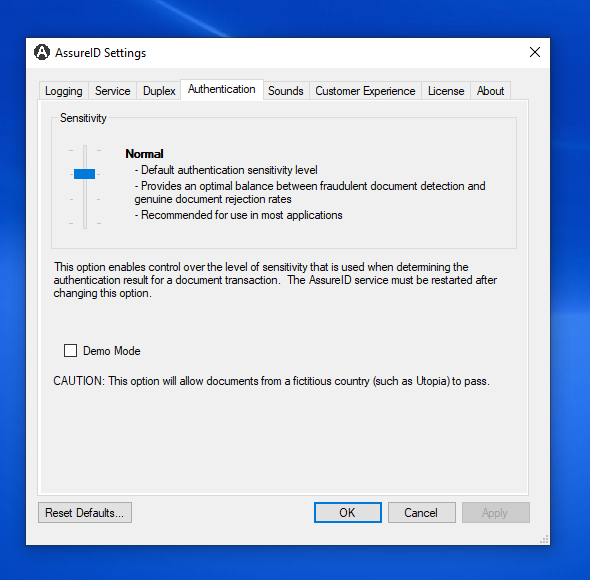
Section titled “Authentication tab”AssureID enables users to control the level of sensitivity that is used when determining the authentication result for a document transaction.
| Setting | Description | Recommendations |
|---|---|---|
| Very Low | Provides a very low fraudulent document detection rate and may significantly reduce the rate of authentic document rejection. | Not recommended for use in applications where fraudulent document detection is critical. |
| Low | Provides a lower fraudulent document detection rate, while possibly resulting in lower genuine document rejection rates. | Not recommended for use in applications where fraudulent document detection is crucial. |
| Normal | Default authentication sensitivity level. Provides the optimal balance between fraudulent document detection, and genuine document rejection rates. | GBG highly recommends that most users keep the sensitivity set to Normal. |
| High | Provides a higher fraudulent document detection rate, while possibly resulting in a higher genuine rejection rate. | Recommended for use in high-security applications. |
Set or change the authentication sensitivity level
-
In AssureID Settings, click the Authentication tab.
-
Use the slider to adjust the Sensitivity setting.
-
Click Apply to save changes but keep the AssureID Settings window open, or click OK to save changes and close the window.
Note: You must restart the service after making changes to the authentication sensitivity or mode.
Demo mode
Section titled “Demo mode”Demo mode provides a way for users to allow test documents from a fictitious country (such as Utopia) to pass the Issuer State Authentication test.