

Configuring AssureID Sentinel with Ozone
AssureID Sentinel can be configured to use the Ozone service. The Ozone service is used to validate the chain of Document Signer Certificates, to ensure that the chip hasn’t been manipulated since it was originally signed by the issuing authority, and whether it is still valid (not listed on the Certificate Revocation List). When you purchase an Ozone license, Technical Support provisions your credentials for endpoint, subscription, UID, and password. Use the following procedure to configure AssureID Sentinel to enable the Ozone service.
Configure AssureID Settings to enable the Ozone service
-
Open the AssureID Settings window from the System Tray:
-
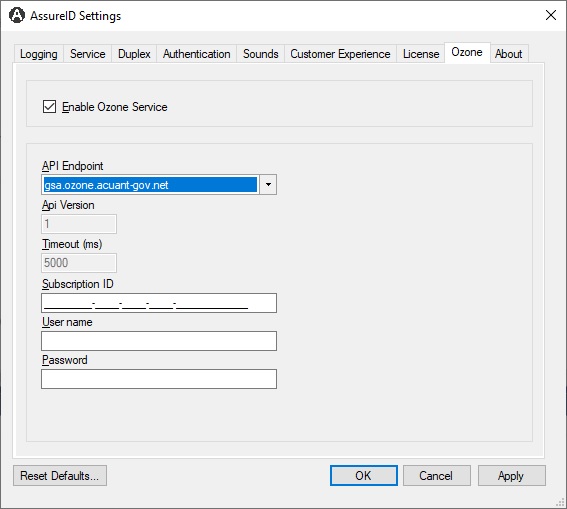
On the Ozone tab, check Enable Ozone Service.
-
Select the endpoint for your subscription from the API Endpoint drop-down menu.
Note: The API version and timeout are predefined and can’t be changed.
-
Enter the Subscription ID, User name, and Password.
-
Click Apply to initiate a validation procedure with the selected settings.
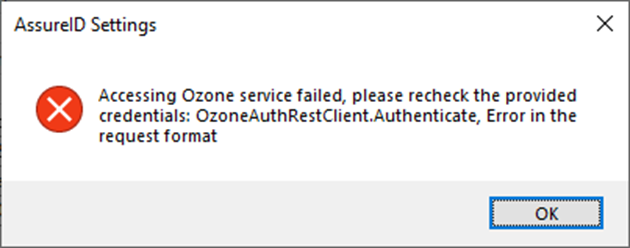
If the validation fails, the following window will be displayed requesting the review and revision of the entered values for each of the fields. Click OK and then repeat steps 4-6.
If validation succeeds, click OK. The System Tray will close. The next time the DAP service runs, it will call the Ozone service (when applicable).
The Ozone settings in DAPServiceConfig.xml
Section titled “The Ozone settings in DAPServiceConfig.xml”The settings the Ozone tab writes are kept in DAPServiceConfig.xml in the AssureID config folder (by default C:\Program Files\Acuant\AssureID\config). An earlier release (5.1) was configured by editing this file directly; the Ozone tab is now the supported way. The section looks like this:
<ozone> <apiEndpoint>https://your-ozone-endpoint/mrtd/authenticate</apiEndpoint> <apiVersion>1</apiVersion> <enabled>true</enabled> <timeout>5000</timeout></ozone>The endpoint is the one Technical Support provisioned for your subscription. The API version and timeout are predefined and should not be changed.
The Ozone service itself, its request and responses, the result codes it returns and the issuing authorities it trusts, is documented in the Ozone documentation. An installation that runs its own Ozone Analyzer Server points AssureID Sentinel at it in the same way.