

Installing the AssureID License Server
An Internet connection is required to activate the software license on each computer where AssureID Sentinel is installed. However, in many environments, a direct Internet connection is not possible due to network topology or security restrictions, making it difficult to activate and manage AssureID software licenses. The AssureID License Server provides administrators with an option for these environments without having to resort to manual, email-based activations for each computer. For environments where a direct Internet connection is available at each workstation, the AssureID License Server is not required.
The AssureID License Server serves as a proxy between computers with AssureID installed and the global activations but acts as a conduit for computer activation and deactivation requests. Therefore, an Internet connection is required for the AssureID License Server itself, which may require a specific firewall exception to allow the License Server to communicate with the central AssureID license activation service, but this rule can be very specific to allow only outbound traffic from the License Server to a specific IP address and port.
The AssureID License Server is lightweight and can be installed on almost any Windows computer, meaning it can be deployed on a workstation or server, even on a workstation that has AssureID Sentinel installed. You’ll need to download the AssureID Sentinel ZIP file installation package before you can install the local server.
System requirements
Section titled “System requirements”The AssureID License server requires the Microsoft .NET Framework 4.8 (full install) and a dedicated broadband Internet connection. The following table describes the system requirements.
| Requirement | CPU | RAM | Hard disk |
|---|---|---|---|
| Minimum | 2 GHz Intel Pentium 4 | 2 GB RAM | 10 GB |
| Recommended | Intel Core 2 Duo | 4 GB | 20 GB |
The following operating system versions are supported:
| Operating system version | Type |
|---|---|
| Microsoft Windows 11 | 10 | 8.1 | 8 | 64-bit |
Note: GBG does not recommend running AssureID Sentinel on machines with the Intel Atom® Processor E3826.
Installing a local License Server
Section titled “Installing a local License Server”The AssureID License Server installation package is included with the AssureID Sentinel Zip installation package. You can download the Zip installation package from https://gbgamericas.my.site.com/support. A self-extracting executable is included in the exe\AssureTec_LicenseServer.exe folder
Note: The current user must be part of the computer’s Administrators group to install the AssureID License Server.
Install the AssureID Licence Server
-
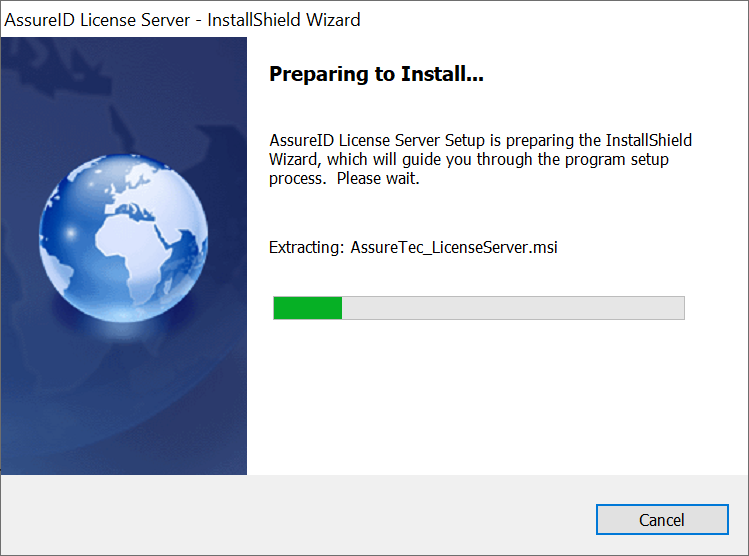
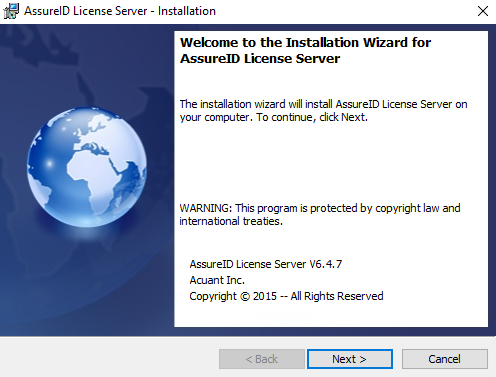
Run the EXE package to launch the Installation. The Preparing to Install window opens, followed by the Welcome to the Installation Wizard for AssureID License Server:
-
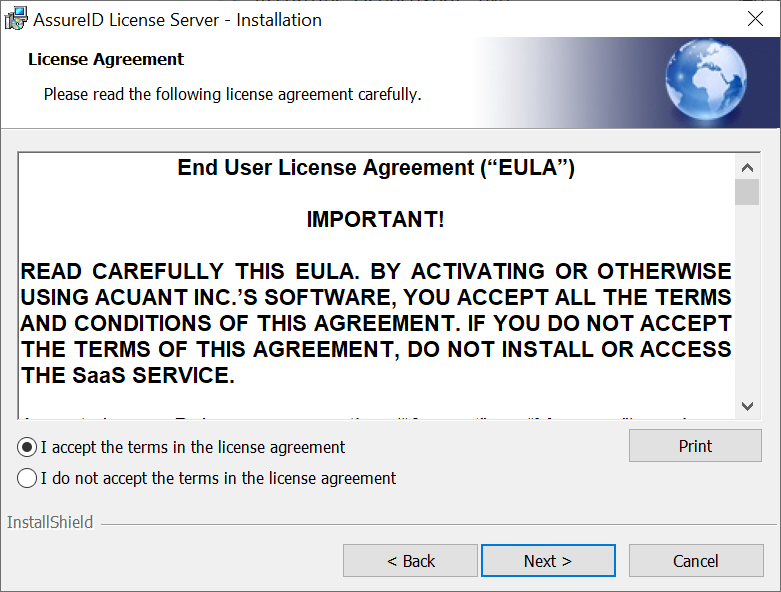
Click Next. The License Agreement window opens:
-
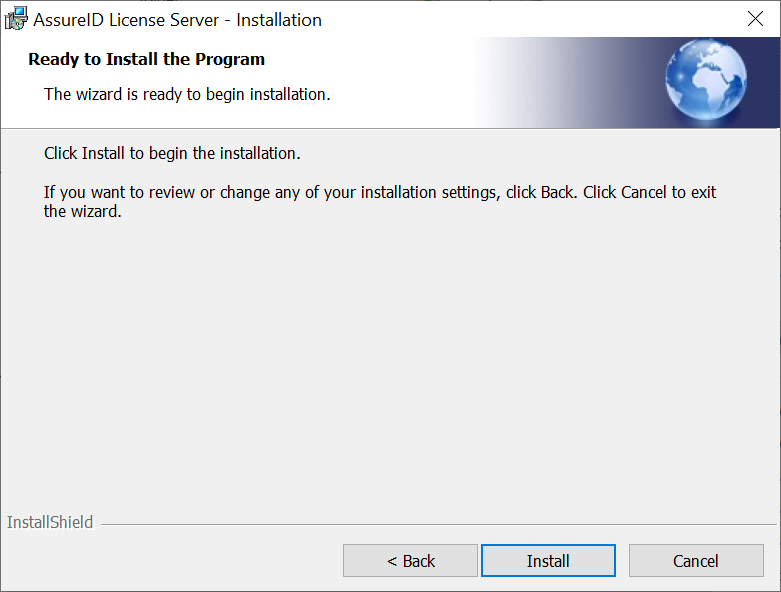
Select the I accept the terms in the license agreement option and click Next. The Ready to Install the Program window opens:
-
Click Install.
-
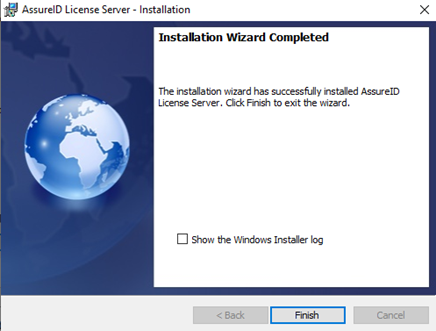
When the installation is complete, the Installation Wizard Completed window opens. Click Finish.
-
The files are now installed in the folder: C:\Program Files (x86)\AssureTec\License Server
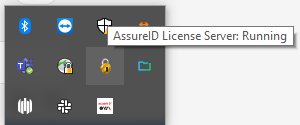
You can check the status of the License Server In the System Tray. Hover over the lock icon to see the status of the service:

Configuring ports/network firewall and clients
Section titled “Configuring ports/network firewall and clients”After the AssureID License Server installation has completed, you must configure the following:
- Configure your AssureID License Server to use a specified HTTP/HTTPS port (ensure that the port chosen is not blocked by the computer’s firewall).
- Configure your network firewall to allow the AssureID License Server to communicate with the AssureID central license activation service.
- Configure each AssureID Sentinel client to use the locally installed AssureID License Server.