

Activating a licence
After you install the AssureID software on your computer’s hard drive, you must activate the AssureID Sentinel software license before you can begin using the software. If you experience any issues with license key activation or machines that are becoming deactivated, contact GBG Technical Support using one of the following methods:
- Submit a support ticket: https://gbgamericas.my.site.com/support
- Call Technical Support: 866-520-1234
There are three options you can choose from to activate your software license.
-
Activate the license using the Internet (default) using a secure port HTTPS (443).
-
Manually activate the license using email if you are unable to activate using the Internet.
-
Automatically activate the license using a local AssureID License server.
Note: An AssureID License Server must be installed and accessible on the local network in order to use this method. You must also configure the address of the local server.
Activate the AssureID software license
-
Launch the AssureID License Activator application or click the AssureID license activation required message balloon displayed by the AssureID Platform System Tray icon.
-
Click Start > Assureid > AssureID License Activation.
The Welcome to AssureID Sentinel License Activation window opens.
-
Enter the 26-character alphanumeric license key provided by GBG at the time of purchase.
-
Select one of the following options for Activation Method:
- Automatically activating a license using the Internet (recommended)
- Automatic using a locally installed AssureID license server
- Manually activating a license using email (advanced)
- Manually activating a license with an existing license key
GBG recommends the automatic activation method using the internet over a secure HTTPS connection (port 443). If you are unable to activate by using the Internet, you can activate a license using the manual activation process. Each of these options are described in the following sections.
Another option for activation when the Internet is unavailable is to configure an AssureID License Server, which acts as a proxy to connect to GBG’s centrally hosted license activation server.
Important: An AssureID License Server must be installed and accessible on the local network to activate AssureID using this method. For details on installing and configuring the AssureID License Server, see Installing the AssureID License Server. Prior to activating the license, you must first configure AssureID with the address of the license server.
Automatically activating a license using the Internet
Section titled “Automatically activating a license using the Internet”Automatic activation over the requires an internet connection. Enter the valid 26-character alphanumeric license key, select the activation method Activate automatically via the Internet, and then click Activate License. The software activation process proceeds automatically. Upon successful activation, the License Activation application reports that the software has been activated.
Using a secure port HTTPS
Section titled “Using a secure port HTTPS”After you install AssureID Sentinel, you can specify to use a secure port in the license server.
Configure AssureID to use secure port HTTPS (443)
-
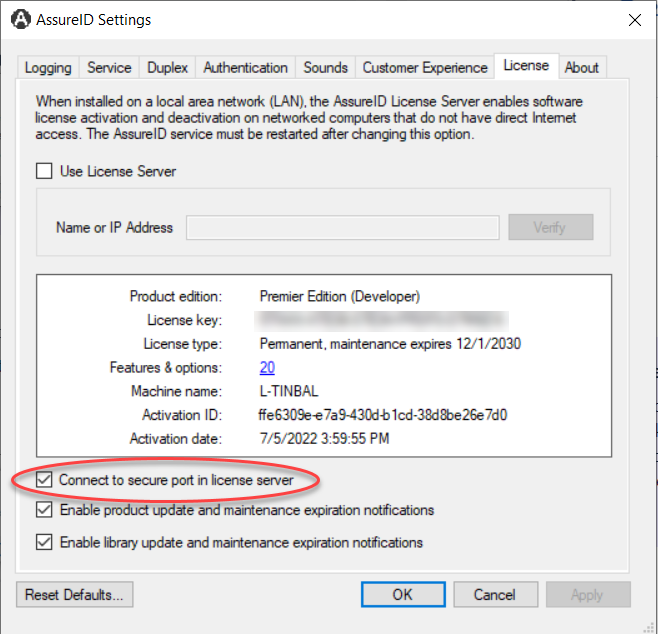
Right-click the AssureID system tray icon and select AssureID Settings:

-
On the License tab, select the Connect to secure port in license server checkbox.
Manually activating a license using email
Section titled “Manually activating a license using email”Manual license activation is available for situations where an Internet connection is not immediately available.
Note: Some AssureID functionality may not be available until activation has been completed.
Manually activate the license using email
-
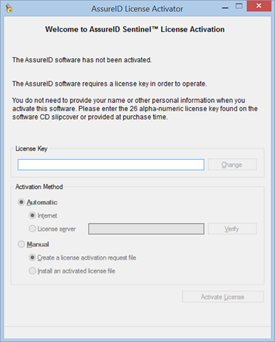
Click Start > AssureID > AssureID License Activation. The Welcome to AssureID Sentinel License Activation window opens:
-
Enter the valid 26-character alphanumeric license key in the License Key text box.
-
For Activation Method, select Manual (Advanced).
-
Select the Create a license activation request file option.
-
Click Activate License.
An activation request file is created for the installed system. You are prompted to specify a folder and file name for saving the activation request file. After the activation request file has been saved, you must include the generated activation request file as an attachment to an email and send that email to assureid.licensing@gbgplc.com.
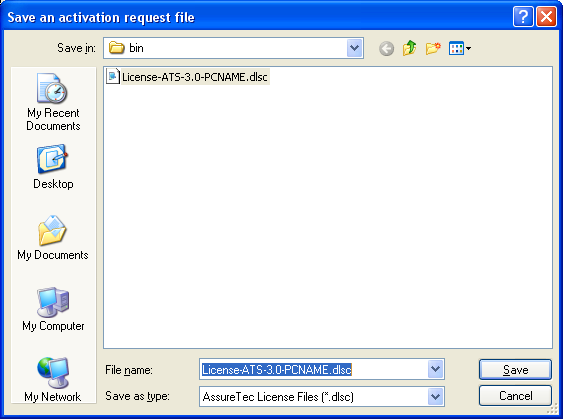
Note: Manual license activation requires you to email the activation request file as an attachment to assureid.licensing@gbgplc.com. The process of emailing the license request file to GBG is not automatic.
-
After the activation request file has been received by GBG, you’ll receive an email response (typically within 15 minutes) that contains an activated license file. If you do not receive an email response within 24 hours, contact Technical Support.
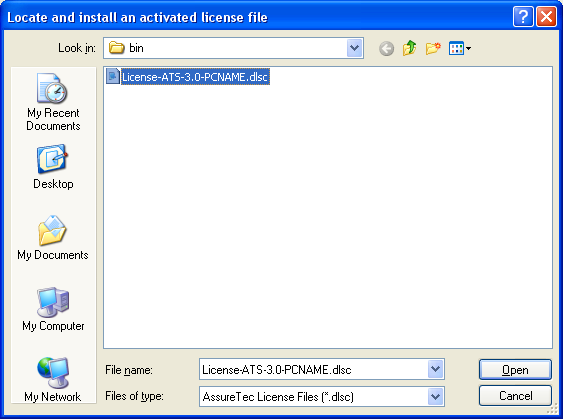
Note: After you receive the email from GBG that includes the activated license file, install the activated license file onto the exact system from which the request was generated.
-
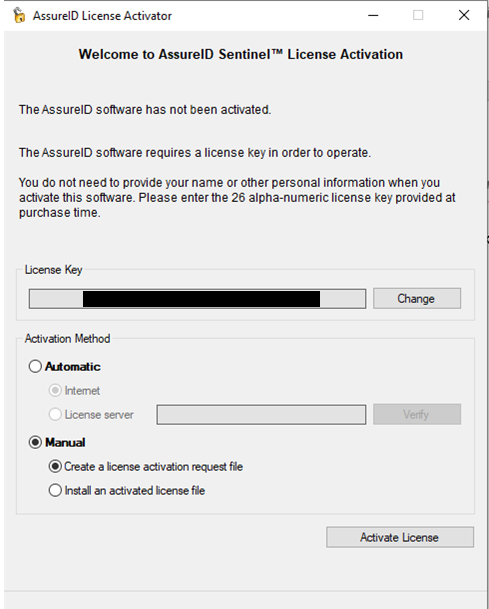
Click Start > AssureID > AssureID License Activation. The Welcome to AssureID Sentinel License Activation window opens.
-
Enter a valid 26-character alphanumeric license key in the License Key text box.
-
For Activation Method, select Manual (Advanced), and then select Install an activated license file.
-
Click Activate License.
-
At the prompt, browse to and select the activated license file received from GBG, and then click Open. When the license is successfully activated, the License Activation application displays a confirmation and all software features authorized by the license are enabled.
Manually activating a license with an existing license key
Section titled “Manually activating a license with an existing license key”Use the following procedure to change your existing license key.
Note: Changing the license key does not necessarily deactivate the previously installed and activated license key. To ensure that the current license key is deactivated, and that the computer released from the key, follow the steps in section Deactivating an AssureID License prior to changing the license key.
Change your existing license key
- Click Start > AssureID > License Activation. The Welcome to AssureID Sentinel License Activation window opens.
- Click Change. The license key field becomes an editable text field, where you can copy and paste or manually enter a new key.
- Repeat the steps for activating a license key to activate with the new key.
Automatically activating a license with a local license server
Section titled “Automatically activating a license with a local license server”In order to activate a license using a local server, you must first install and configure an AssureID License Server. After the license service has been configured, use the following procedure to activate the license.
Activate the license using a local license server
- Launch the AssureID License Activator application or click the AssureID license activation required message balloon displayed by the AssureID Platform System Tray icon.
- Click Start > AssureID > AssureID License Activation.
- Enter the 26-character alphanumeric license key provided by GBG at the time of purchase.
- Select Automatic.
- Select License server and enter the IP address of the local license server in the text field.
- Click Verify to check the connectivity to the local license server.
Common license activation errors
Section titled “Common license activation errors”This section describes some of the most common errors encountered.
-
CodeReuseBlocked - License could not be activated
-
There are no available seats on the license key. When you activate the software on a computer, a seat on the key is reserved by that computer. If you are moving the software to a new/replacement computer, you first need to deactivate the prior computer that was using the license. Also, if you have upgraded the operating system or reimaged the computer, that computer is identified as a new computer by the licensing manager. In this case, the seat must be deactivated from the old computer to free the seat. There is a capability that enables you to perform a “self-deactivation.” The only other requirement is that your computer can connect to the internet to reach the GBG license server. When you launch the Activation tool, you see one button for Activate License and another for Deactivate License. If you select to deactivate the license, the computer is released from the license server and the seat on the license key becomes available. You can then use the license key on the replacement computer and perform the activation.
-
No License Servers - An Internet connection is required for this operation, and the connection currently appears to be unavailable:
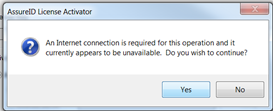
The computer cannot access the external internet. If you do not have internet access, or encounter problems while trying to deactivate, contact GBG Technical Support.
You will need to provide the license key and the machine name/hostname of the computer that can be deactivated.
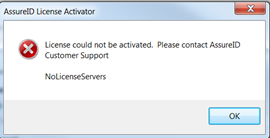
Contact GBG Technical Support using one of the following methods:
-
Phone: 866-520-1234
Normal support hours are 8:00 AM – 8:00 PM, U.S. Eastern Time, Monday through Friday.