

AssureID Settings
This section describes the various AssureID settings that you can specify.
Open AssureID Settings
-
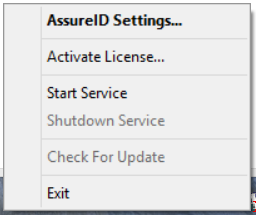
Right-click the AssureID Tray icon on your taskbar, and select AssureID Settings:
-
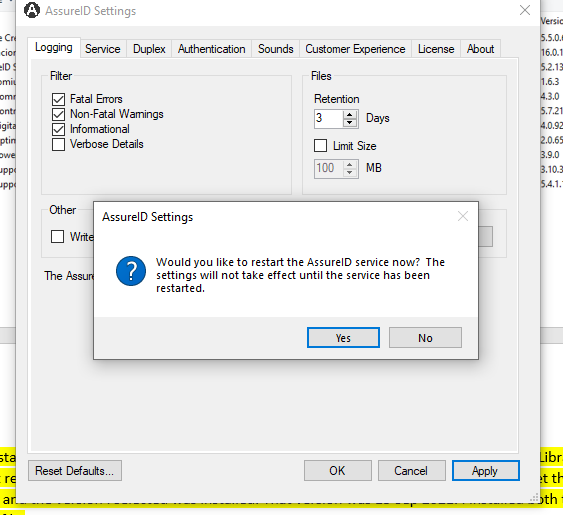
To apply any settings changed in the applet, click Apply or OK. With the exception of the sound system, any changes made to the settings require a restart of the AssureID Service. If the service is currently running, you are prompted with a dialog box with the option to restart the service.
-
To allow the service to restart, click Yes. Otherwise click No to restart the service at a later time.
-
If you choose to reset the default settings by clicking Reset Defaults, a confirmation dialog box opens:
-
Click Yes to allow the default settings to be applied or No to continue making setting changes.
Advanced AssureID Settings
Section titled “Advanced AssureID Settings”The AssureID System Tray applet contains a facility to configure system-wide settings including:
-
Setting log message filtering, log file retention time, and maximum size
-
Enabling or disabling double-sided document (duplex) support
-
Setting the authentication sensitivity level for documents
-
Configuring the AssureID sound system
Note: Sounds play only if the AssureID System Tray is running.
-
Opting in or out of the AssureID Customer Experience Program (ACE)
-
Viewing AssureID license and version information
-
Enabling Demo mode to allow users to test documents from a fictitious country (such as Utopia) and pass the Issuer State Authentication test.
Logging Options
Section titled “Logging Options”By default, the AssureID Service does not log personal, biographic, or document instance information, and contains only information useful for general troubleshooting and diagnostics.
For advance troubleshooting and diagnostics, customers might be asked to enable additional logging levels to clearly view all activities that the AssureID Service performs.
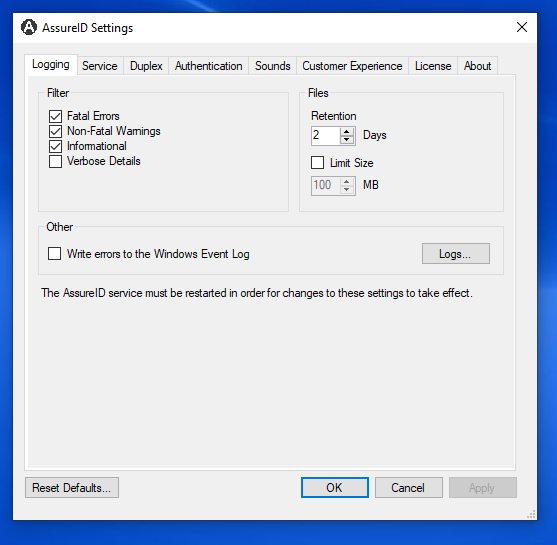
The logging levels are defined as:
- Fatal Errors – Errors that might cause an operation in the software to abort unexpectedly. In some cases, these are handled by the software, which allows AssureID to continue normal operation.
- Non-Fatal Warnings – Errors that might cause an operation in the software to abort in an expected fashion. In these cases, AssureID continues normal operation.
- Informational – Provides information regarding important activities that occur within the software. This information can be used for high-level performance analysis and system troubleshooting.
- Verbose Details – Provides low-level details regarding important activities in the software. This information is highly technical in nature and can be used by AssureID Customer Support for performance analysis, system troubleshooting, and debugging. Regardless of the logging level enabled, absolutely no personal information is stored in the log files. Log files contain information useful for debugging purposes only.
Change the logging level
- In AssureID Settings, click the Logging tab.
- In the Filter list, select one or more checkboxes that correspond to each logging level (Fatal Errors, Non-Fatal Warnings, Informational, Verbose Details) to enable or disable those levels.
- In the Files section, specify the number of days to retain log files and, optionally, limit the size (in MB) of these files. By default, logs are retained for two (2) days before being removed by AssureID. You can set a limit on the size of log files by selecting the Limit Size checkbox and specifying the size in MB.
- (Optional) You can log errors to the Windows event log by checking Write errors to the Windows Event Log. This might be useful to System Administrators performing monitoring or debugging of a workstation. Click the Logs button to open the folder that contains the AssureID and other related log files