

Installing a scanner for eClinicalWorks (eCW)
Note: This page was written in 2020 for Acuant’s eClinicalWorks (eCW) integration and is kept for existing eCW customers. Links to retired GBG websites have been removed; contact GBG Support for the test utilities.
Sign up for GBG Customer Support
Section titled “Sign up for GBG Customer Support”Log in and open a ticket
Go to https://gbgamericas.my.site.com/supportand click LOGIN.
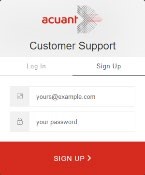

Click the Sign Up tab. Enter your email and create a password (at least 8 characters in length that includes lower and uppercase letters, a number, and a special character) and then click SIGN UP. You will receive an email from GBG that contains a link to verify your email address.

In the email, click VERIFY YOUR ACCOUNT. You must verify your account before you can log in.

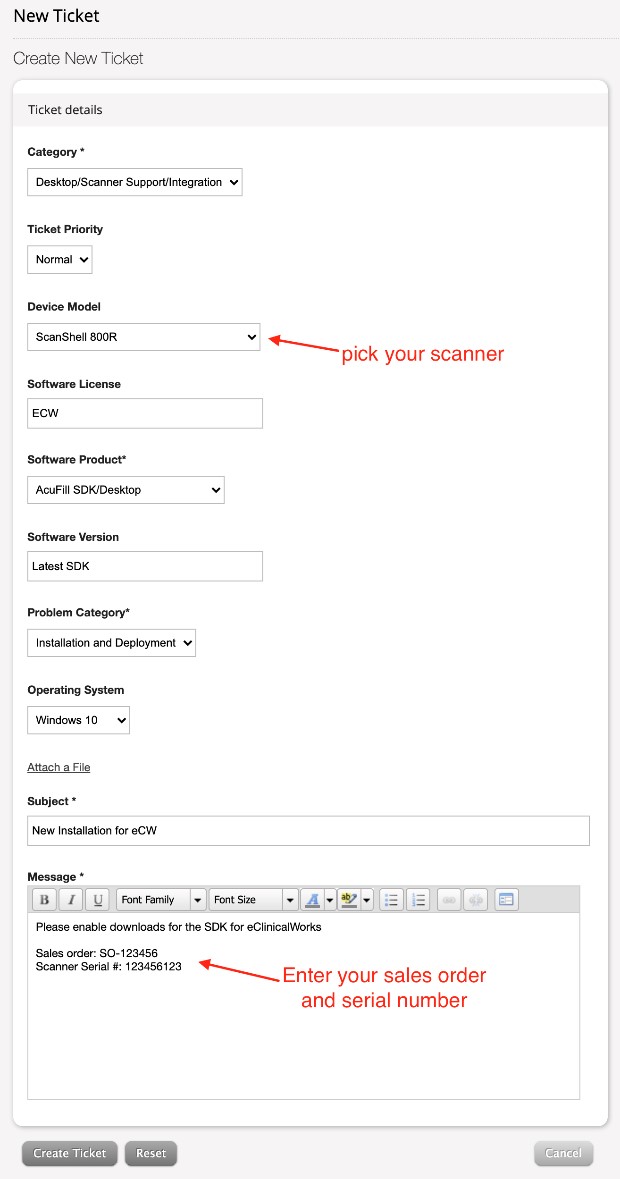
Go to https://gbgamericas.my.site.com/supportand click LOGIN.
Click TICKETS. In the Tickets window, click New Ticket.

- Fill in the ticket with the following information:
| Category | Desktop/Scanner Support/Integration |
|---|---|
| Ticket Priority | Normal |
| Device Model | Your scanner model |
| Software License | eCW |
| Software Product | AcuFIll SDK/Desktop |
| Software Version | Latest SDK |
| Problem Category | Install and Deployment |
| Operating System | Your operating system |
| Subject | New eCW Installation |
| Messages | Enable download of the SDK for eClinicalworks |
| Messages | Sales order or invoice |
| Messages | Serial number of the scanner |
Click Create Ticket. GBG Support will enable you to download and install the software from the Downloads page of the Support Portal.

Download and install the software
Section titled “Download and install the software”Go to the Downloads page.
Note: The DOWNLOADS page requires you to log in separately (using the same credentials).
Note: Make sure the eCW application is closed.
Expand the AcuFill Local SDK – ecw folder:
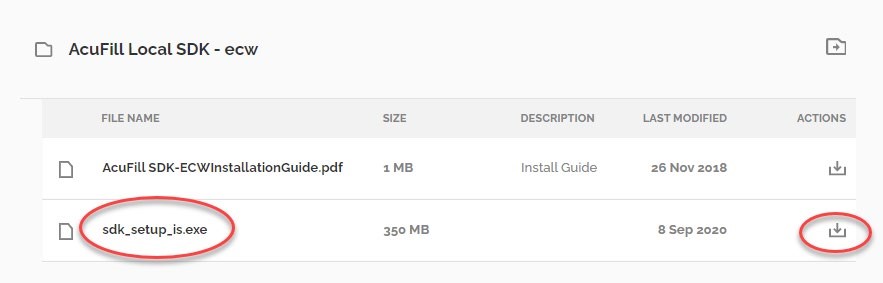
In the ACTIONS column, click the download icon for sdk_setup_is.exe.
Run sdk_setup_is.exe as Administrator:
- Select Medical cards.
- Select your scanner model.
Install the plug-in
Section titled “Install the plug-in”Launch the eCW application.
If you are using the web version of eCW, click the install the plug-in button on the login screen.
Download and install the plug-in as Administrator.
Scanning IDs:
https://www.acuantcorp.com/wp-content/uploads/medical_partners/eclinicalworks/DLscanningECW.wmv**Scanning Medicals:** https://www.acuantcorp.com/wp-content/uploads/medical_partners/eclinicalworks/INSURANCEscanningECW.wmv
**TWAIN Activation:**https://www.acuantcorp.com/wp-content/uploads/2015/10/Twain-Document-4.pdf
Test the SDK and scanner
Section titled “Test the SDK and scanner”Use one of the following utilities test the SDK and scanner: http://id-reader.com/support/Test_Utilities/IdTestUtility.zip
Select option 1 and replace the license text file with: the licence value GBG Support gives you http://id-reader.com/support/Test_Utilities/MedicalInsuranceCardTestUtility.zip
Select option 1.
Note: Extract both files out of the zip before running the Utilities.
If you need assistance with the installation or testing, contact GBG Support:
Web: https://gbgamericas.my.site.com/support
Phone: 866-520-1234
Normal support hours are 8:00 AM – 8:00 PM, U.S. Eastern Time, Monday through Friday.