

Document Library updates
Checking the AssureID Document Library version
Section titled “Checking the AssureID Document Library version”Before you perform a Document Library-only update, you must already have a currently installed copy of AssureID Sentinel on your machine.
Note: You must have administrative privileges on the machine where the AssureID Document Library will be installed.
If you have installed AssureID Sentinel (version 5.0.103 or higher), then you have the version of the Library that was included with that released version, and you won’t have a separate item listed for AssureID Document Library. If you later install an update to the Document Library as a separate installation, then it appears in the Windows Control Panel as a separate item.
For example, if you installed AssureID Sentinel 5.2.163 when it was released in July 2022, you would have the July version of the Document Library. Whenever a new version of AssureID Sentinel is released, it will include the latest available Document Library.
Note: Attempting to upgrade the Document Library after the expiration of your maintenance agreement will fail.
You can verify your AssureID Document Library version from the Windows Control Panel:

You also can check the version from the AssureID Settings window. Right-click the AssureID icon in the System Tray to open the Settings window, and then select the About tab.

Updating the AssureID Document Library
Section titled “Updating the AssureID Document Library”You can check for updates to the AssureID Document Library at any time from the System Tray.
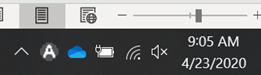
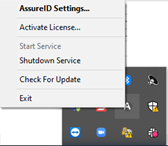
Right-click the icon and click Check For Update:

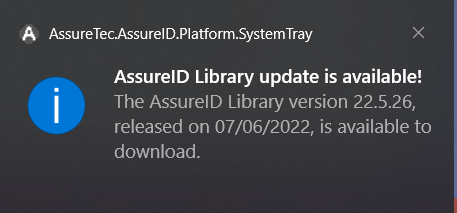
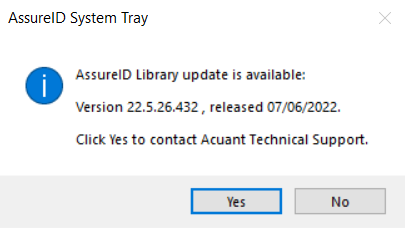
If a new AssureID Library version is available, a notifications popup window will appear when launching the System Tray. After the System Tray is running, no further notifications appear.
Install the AssureID Document Library only
-
Go to https://gbgamericas.my.site.com/support and click Downloads.
-
In the AssureID Sentinel section, download the version of the Library that you want to install. The file name is formatted as Year.Month.Day.Build.
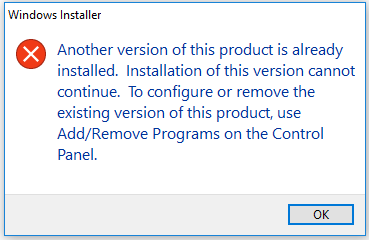
Note: If you already have the version you are trying to install on your machine, the Windows installer displays the following message:
-
Click OK to run the AssureID Document Library .msi file.
-
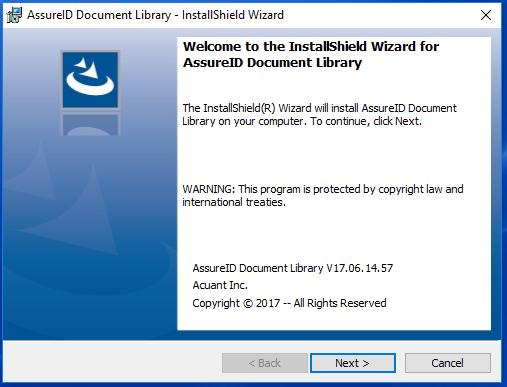
Click Next. The Welcome to the InstallShield Wizard for AssureID Document Library starts.
-
Click Next.
-
Select I accept the terms in the license agreement, and then click Next.
-
The Destination Folder window opens. The Library installation defaults to:
C:\Program Files(x86)\Acuant\AssureID Document Libraryfolder. To change the destination folder, click Change. To accept the default folder location, click Next. -
Click Install.
-
(Optional) Confirm or enter your Admin credentials, and then click Yes.
-
Click Finish and restart the computer.
Silent install of the AssureID Document Library (msi)
Section titled “Silent install of the AssureID Document Library (msi)”Use this command to silently install the Document Library:
AssureID_Document_Library_v20.3.20.173.msi /qn