

Using the SDK with Visual Basic 6.0
This section describes how to use the AssureID Sentinel SDK from Visual Basic 6.0. Before you can use the SDK from an application, the SDK must be referenced from your application’s project.
Reference the AssureID Sentinel SDK from Visual Basic 6.0
- In Visual Basic 6.0, click Project > References.
- In the References dialog box, select AssureID COM Platform SDK Library.
- Click OK. You can now access the AssureID COM Platform SDK from the project.
Creating an AssureIDSession
Section titled “Creating an AssureIDSession”In Visual Basic, a session object must be declared and allocated from within the application. The following example declares the AssureIDSession object:
Private WithEvents Session As AssureIDPlatformSDK.AssureIDSessionNote: You must include the WithEvents keyword for Visual Basic to receive events from the SDK.
Set Session = New AssureIDPlatformSDK.AssureIDSessionConnecting to the AssureID DAP
Section titled “Connecting to the AssureID DAP”After you create the AssureIDSession object, you must connect it to the Document Authentication Platform (DAP) before you can use it with Visual Basic. The Open method will succeed even if the DAP service is not currently running.
session.Open();Note: The DAP Service is configured at the time of installation to start automatically, however you can modify the settings to start and stop it manually in the Administrative Tools > Services in the Windows Control Panel.
When the DAP service is started, any open sessions automatically connect to it. Use the IsConnected property to determine whether a session is currently connected.
Controlling the AssureID DAP
Section titled “Controlling the AssureID DAP”After successfully opening the session, you can call methods to control the DAP using Visual Basic. These methods allow the document trigger mode and transaction mode to be set up for the DAP and allow manual triggering of documents and transactions.
Receiving AssureID Sentinel SDK Events
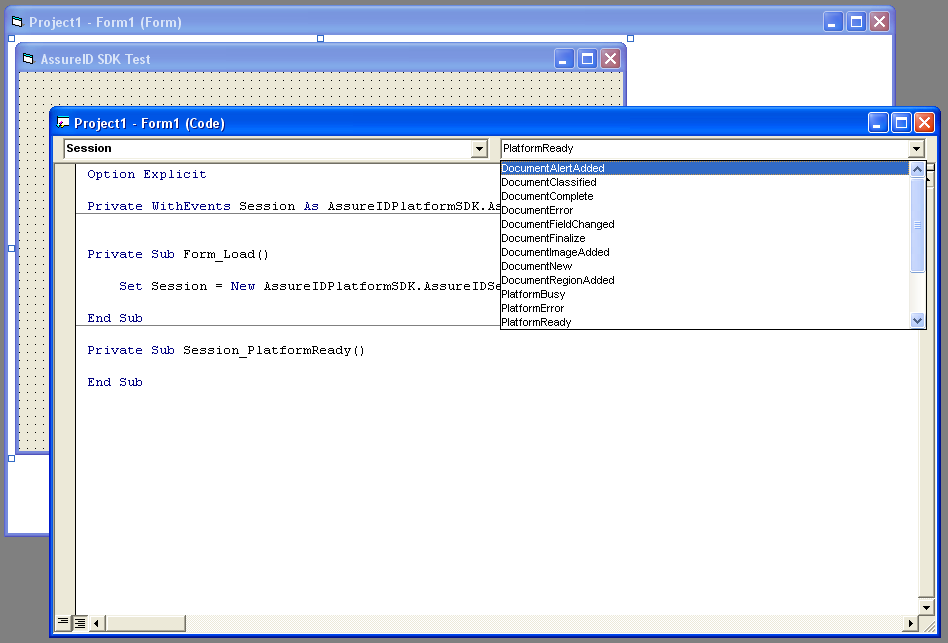
Section titled “Receiving AssureID Sentinel SDK Events”You can create event callback subroutines with Visual Basic by selecting the Session variable from the Form (Code) windows pulldown (in the top-left corner of the window). Select an event from the pull- down list as shown in the following figure. When selected, Visual Basic automatically generates the subroutine to handle that event, as shown below:
Example
Section titled “Example”The following example shows a Visual Basic generated event handler:
    Private Sub Session_DocumentComplete( _        ByVal e As AssureIDPlatformSDK.IDocumentEventArgs)
     ‘ TBD
    End Sub
Note: By default, events are fired from a secondary thread to the application. If your application performs significant UI functionality from within the event handlers, you need to change the ThreadingModel property of AssureIDSession to SingleThreaded before connecting to the DAP. This guarantees that all events are fired from the thread responsible for handling UI events and should prevent problems or crashes from occurring. If no UI is performed from the event handlers, GBG recommends setting the ThreadingModel to MultiThreaded.
Accessing document information
Section titled “Accessing document information”You can access information about the current document or transaction with Visual Basic in two ways. Event arguments contain references to relevant data (such as the transaction, the document, and the document image). The current transaction and document are also accessible through the AssureIDSession object directly using the CurrentDocument and CurrentTransaction properties.