

Using the SDK with Visual Studio (C# and VB.NET)
The following sections provide instructions and examples for integrating the AssureID Sentinel SDK into a custom application in the various supported development environments. Examples are given for Visual Studio (C# and VB.NET), Visual Basic 6.0, Visual C++, and Java. Additional source code examples are installed with the AssureID Developer’s SDK.
Note: Before you can use the SDK from an application, it must be referenced from your application’s project.
Reference the AssureID Sentinel SDK in Visual Studio
- In Visual Studio .NET, click Project > Add Reference.
- In the Add Reference dialog box, select AssureID for .NET 4.x.
- Click OK.
Creating an AssureIDSession
Section titled “Creating an AssureIDSession”In Visual Studio, the AssureIDSession component can be dropped onto a forms-based application. First you must add the component to the Toolbox.
Add the AssureID component to the Toolbox
-
In Visual Studio, click View > Toolbox.
-
Right-click the Toolbox, and then select Customize Toolbox.
-
On the .NET Framework Components tab, click Browse.
-
Browse to the AssureID install directory (in the sdk subdirectory) and select the AssureTec.AssureID.Platform.SDK.dll, and then click Open.
-
Confirm that the AssureIDSession component is checked, and then click OK.
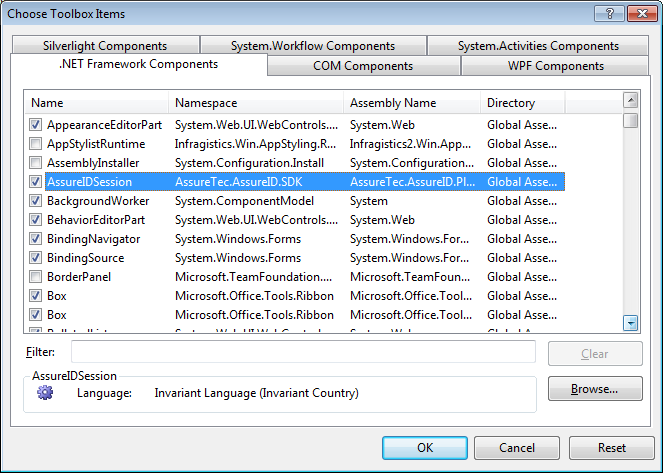
The AssureIDSession component should now appear in the toolbar and can be dragged and dropped onto any form object. Click the component and drop it onto the form. Alternatively, you can create the component by allocating a new instance of the object:
using AssureTec.AssureID.SDK;
    AssureIDSession session = new AssureIDSession();
Connecting to the AssureID DAP
Section titled “Connecting to the AssureID DAP”After you create the AssureIDSession object, you must connect it to the DAP before you can use it with Visual Studio. The Open method will succeed even if the DAP service is not currently running.
Note: The DAP service is installed to start automatically. However, you can configure it to start and stop manually in the Administrative Tools > Services in the Windows Control Panel.
When the DAP service is started, any open sessions automatically connect to it. Call the Open method:
session.Open();To determine whether a session is currently connected, check the IsConnected property or PlatformStatus properties. The PlatformStatusChanged event fires whenever the platform state changes.
Controlling the AssureID DAP
Section titled “Controlling the AssureID DAP”After successfully opening a session, you can call methods to control the DAP with Visual Studio. These methods allow the document trigger mode and transaction mode to be setup for the DAP and allow manual triggering of documents and transactions.
Receiving AssureID Sentinel SDK Events
Section titled “Receiving AssureID Sentinel SDK Events”The AssureIDSession object raises events to notify the application of state changes and provide applications with document data. The application needs to subscribe to events that it is interested in before it can fully use the SDK with Visual Studio. These events are implemented as functions in the application and registered with the AssureIDSession.
There are two ways to register for events in .NET. You can connect events to callbacks by using the Properties pane (see the diagram below) to click on the Events button (the “lightning bolt”) and then double-click on each event that the application wants to receive. This creates an event handling function and registers it with the AssureIDSession.
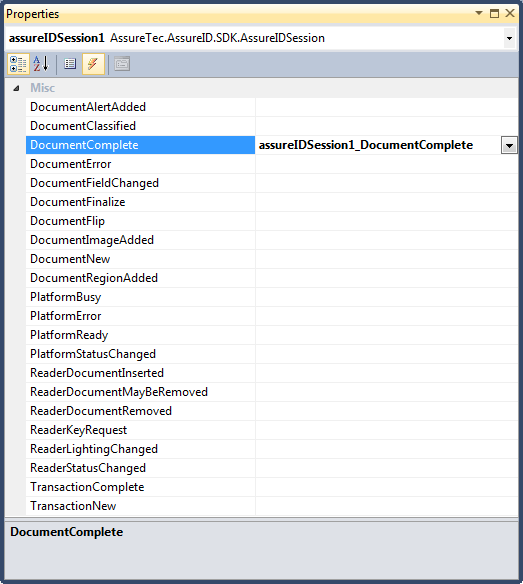
Alternatively, you can register events manually as shown in the following sample C# code that subscribes to the DocumentComplete event:
session.DocumentComplete += new DocumentEventHandler(assureIDSession1_DocumentComplete);You must manually create the event implementation for assureIDSession1_DocumentComplete (this method is automatically generated when you create it by using the Property pane):
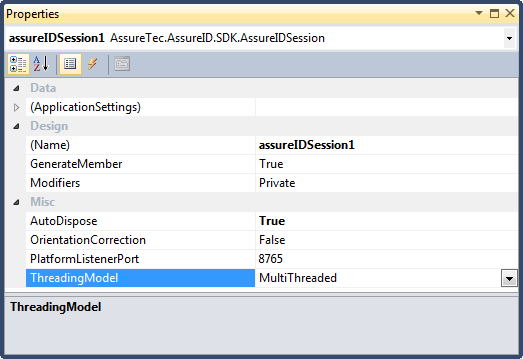
private void assureIDSession1_DocumentComplete( AssureTec.AssureID.SDK.Events.DocumentEventArgs e) { //--- Your code here }Note: By default, events are raised from a secondary thread to the application. If your application performs significant UI functionality from within the event handlers, you need to change the ThreadingModel property of AssureIDSession to SingleThreaded before connecting to the DAP. This guarantees that all events are fired from the thread responsible for handling UI events and should prevent problems or crashes from occurring. If no UI operations are performed from the event handlers, GBG recommends setting the ThreadingModel to MultiThreaded.
Alternatively, you can use the Control.Invoke method to call methods in your application that access GUI objects. For more information, see the .NET Framework Class Library documentation.
Accessing document information
Section titled “Accessing document information”You can access information about the current document or transaction with Visual Studio in two ways. Event arguments contain references to relevant data (such as the transaction, the document, and the document image). With Visual Studio, the current transaction and document also are accessible through the AssureIDSession object directly by using the CurrentDocument and CurrentTransaction properties.
Note that if the AutoDispose property is set to true, all document and transaction information is disposed of before processing the TransactionNew event for the next document. This means that an application that has references to the previous transaction or document object must not attempt to access them and must relinquish them upon receiving this event. This includes all objects in the transaction-document model, including bitmap images. If an application requires these objects beyond the TransactionNew event, the AutoDispose property should be set to false. However, it is recommended that the application then dispose of the Transaction itself (through the Dispose method) when done with the objects to optimize memory management.