

Troubleshooting and repairs
If your device is not working properly, use the following troubleshooting steps.
Troubleshoot the InfinitID scanner
- Check the LEDs:
- If the LEDs are not illuminated, check to make sure the power supply is connected. Wait a few minutes until the LEDs are solid blue. If this does not resolve the problem, create an RMA with DESKO.
- If the LEDs are illuminated, check to see if they are solid blue. If not, then restart the device (unplug and then plug in the power supply again). If this does not resolve the problem, create an RMA with DESKO.
- Test the device. If the device is able to scan the front and back of the ID, then the unit is functioning correctly. If not, contact GBG Technical Support.
Create an RMA
-
Go to www.repair.desko.com.
-
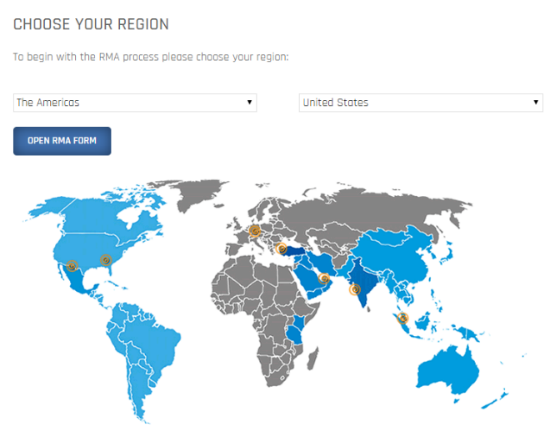
Select your region and country:
-
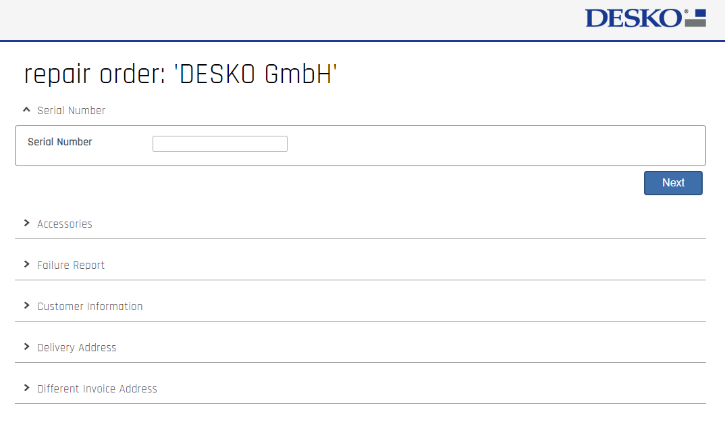
Click OPEN RMA FORM. The RMA form window opens:
-
Enter the product serial number and click Next.
-
If your serial number is a valid number, the RMA form becomes editable. Make sure to complete the RMA form entirely:
-
Accessories
-
Failure Report
-
Customer information
-
Delivery Address
-
Different Invoice Address
If you enter an incorrect or invalid serial number, the following message is displayed:

-
-
Contact DESKO via email at repair@desko.com and be sure to include the serial number of your device and your contact information. DESKO will confirm receipt of the RMA by email and will include shipping labels and instructions in the reply.
-
Print the completed RMA form. You will need to include it with your device when you ship to a DESKO Service Center.
Note: You must complete the RMA before returning the device for repair or replacement.