

Provisioning a device with a QR code
Installing the InfinitID provisioning application
Section titled “Installing the InfinitID provisioning application”Use the following procedure to install the InfinitID provisioning application.
Install the InfinitID provisioning application
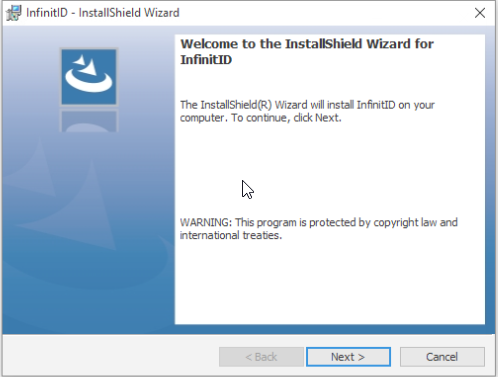
Run InfinitID setup.exe on a local computer where you will be generating provisioning barcodes:
Creating a QR code
Section titled “Creating a QR code”Use the InfinitID application to create a custom provisioning QR code. This code contains the Network settings that the InfinitID device will use. If you plan to enable integration with LexisNexis TrueID®, you will also need to configure the settings on the TrueID tab.
Note: If you enable TrueID, the data from all captured documents will be transmitted to the TrueID web service.
Create a QR code
-
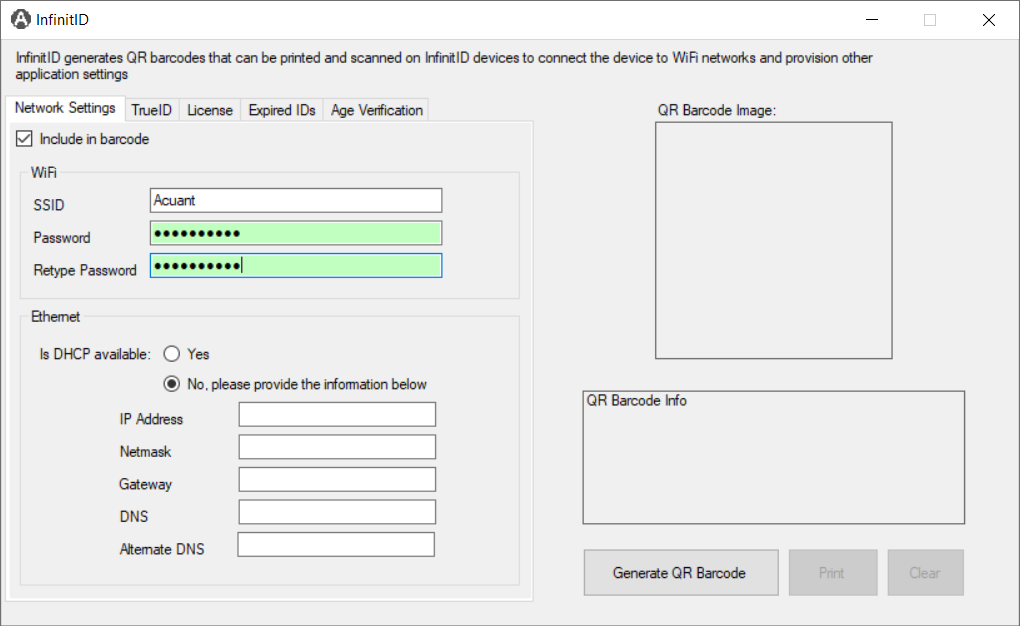
Launch the InfinitID application. By default, the Network Settings tab is displayed:
-
Check the Include in barcode check box to make the settings available and then enter the WiFi or Ethernet network settings information (depending on your configuration).
For a direct Ethernet connection using DHCP, use the default settings.
For WiFi, you must define the SSID and password. See the InfinitID provisioning settings for more information.
-
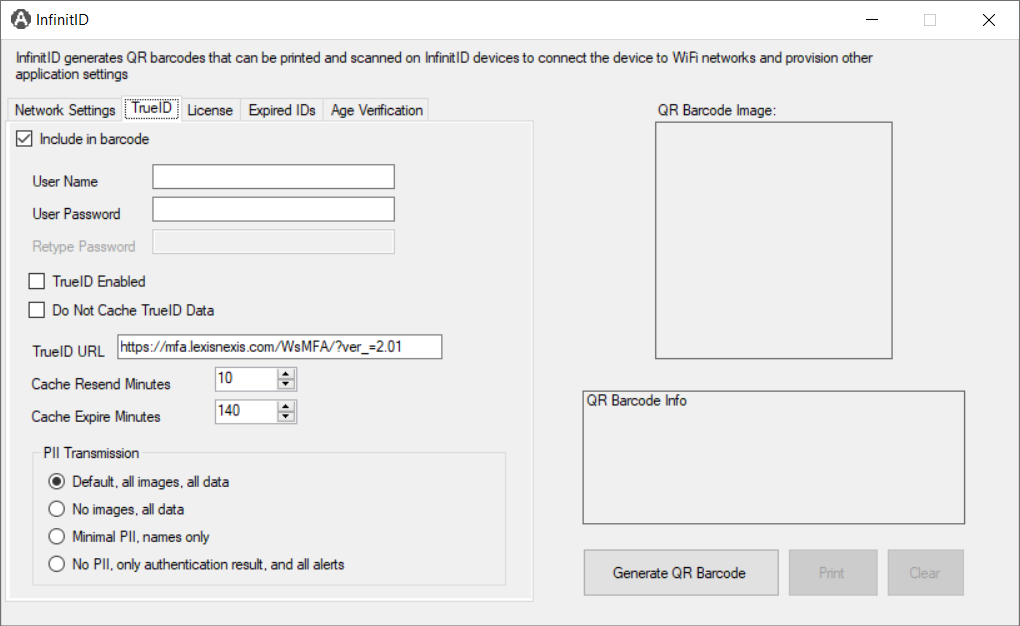
If you are integrating with the TrueID web service, click the TrueID tab. (Otherwise, skip to the License tab.) Check the Include in barcode check box to make the settings options available. Enter the TrueID settings. See the InfinitID provisioning settings for more information about each setting.
-
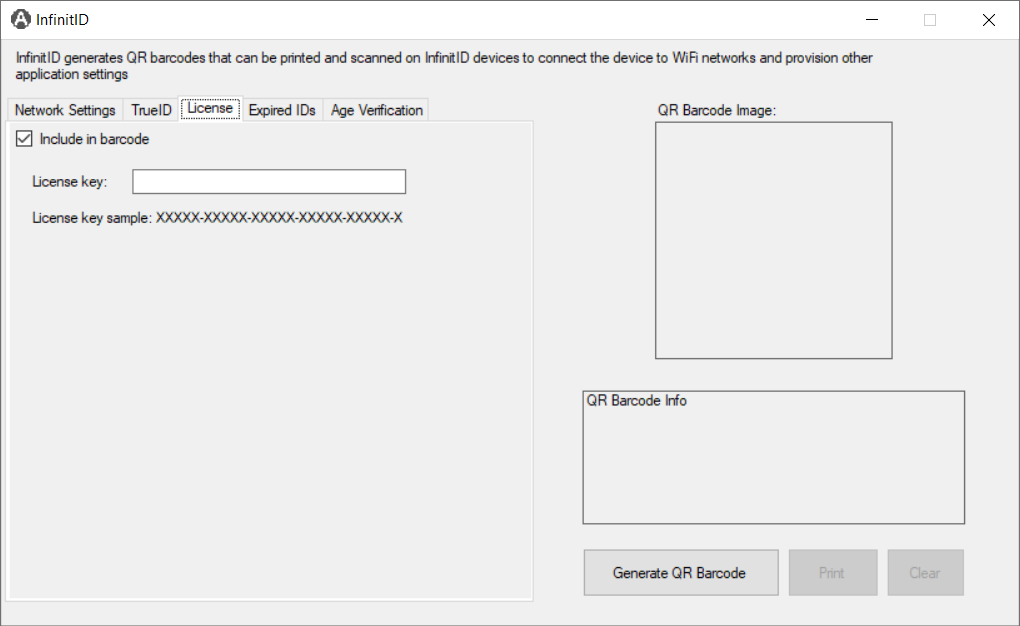
On the License tab, check the Include in barcode check box to make the settings available. Enter the 26-character alphanumeric license key provided by GBG at the time of purchase.
-
On the Expired IDs tab, check the Include in barcode check box to make the settings available.
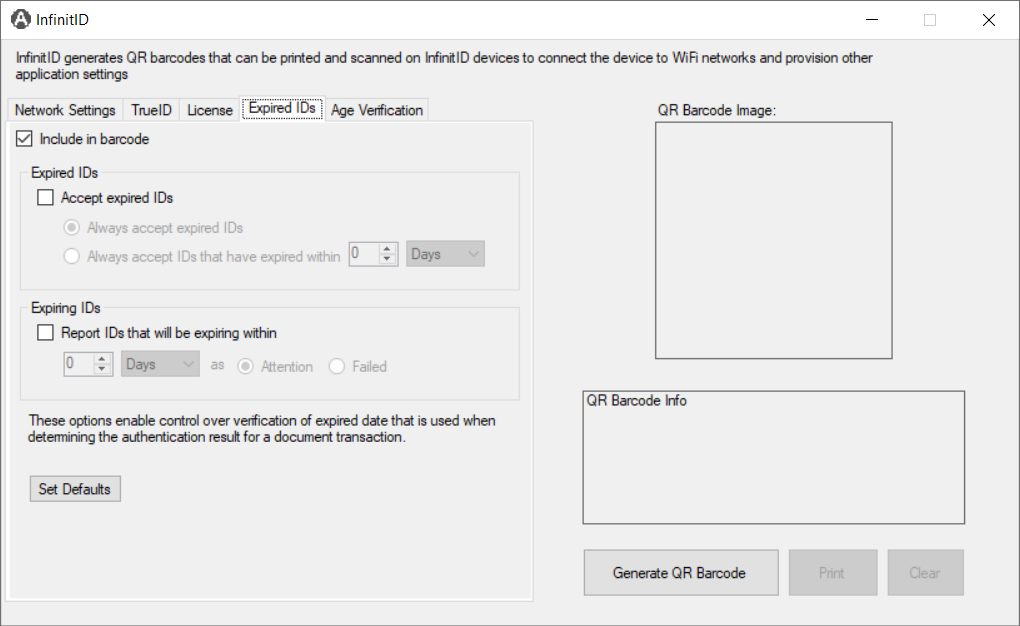
- For Expired IDs, you can check the Accept expired IDs check box and then select either Always accept expired IDs option or define a range by selecting the Always accept IDs that have expired within days|weeks|months|years option.
- For Expiring IDs, you can check the Report IDs that will be expiring within check box and then specify the number of days|weeks|months|years and whether to report them as either Attention or Failed.
-
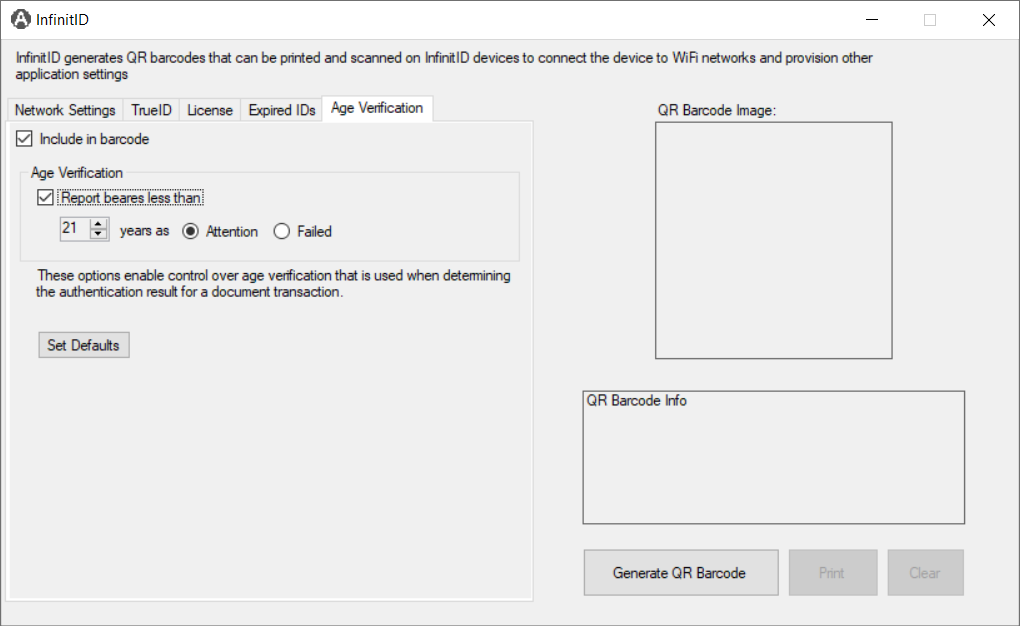
On the Age Verification tab, check the Include in barcode check box to make the settings available. Select the Report bearers less than check box and select the number of years below which to report as either Attention or Failed.
-
When you finish entering your configuration information, click Generate QR Barcode.
-
Click Print to print the QR barcode to use for provisioning.
InfinitID provisioning settings
| Setting | Description |
|---|---|
| Network settings | |
| WiFi | |
| SSID | A 32-character string that identifies the name of the WiFi network |
| Password | Password to the WiFi network |
| Ethernet | |
| Is DHCP available | Automatically generates IP address and associated settings (DEFAULT). Note When selected, the remaining Ethernet settings are not required. |
| IP Address | Static IP address |
| Netmask | Subnet mask used for IP address host |
| Gateway | Address of the forwarding host (router) |
| DNS | Address of the domain name system |
| Alternate DNS | Address of an alternate domain name system |
| TrueID settings | |
| User Name | User name of the TrueID system |
| User Password | User password for the TrueID system |
| TrueID Enabled | Specifies whether to enable TrueID. Note If you enable TrueID, the data from all captured documents will be transmitted to the TrueID web service. |
| Do Not Cache TrueID Data | Prevents local storage of TrueID data if an Internet connection is unavailable. Note If you disable caching, the data from captured documents will not be transmitted to the TrueID web service if an Internet connection is not available. |
| TrueID URL | URL of the TrueID system |
| Cache Resend Minutes | Retry interval, in minutes, between attempts to resend cached data to the TrueID web service |
| Cache Expire Minutes | Time to retain cached data, in minutes, before deleting the data. Note The data will be deleted, whether or not it was transmitted to the TrueID web service. |
| PII Transmission | Indicates which Personal Identifiable Information (PII) to transmit: all, none, names only, or only the authentication result and alerts |
| License | |
| License key | A 26-character alphanumeric license key provided by GBG at the time of purchase |
| Expired IDs | |
| Accept expired IDs | Indicates whether to accept an expired ID as either Always or only when the expiration date is within a specified range of days, weeks, months, or years |
| Expiring IDs | Indicates whether to report an ID that will be expiring within a specified range of days, weeks, months, or years as either: Attention | Failed |
| Age Verification | |
| Report bearers less than | Indicates whether to report an ID where the age of the bearer is less than a specified number of years as either: Attention | Failed |
Provisioning an InfinitID device
Section titled “Provisioning an InfinitID device”After you create and distribute a QR code, you can begin provisioning your InfinitID devices.
Provision the InfinitID device
- Power on the device. When the boot process completes, the LEDs will flash blue and turn solid blue when the device is ready for use.
- Place the printed barcode face down on the device. The scan will begin automatically.
- When the LEDs turn green , the barcode scan was successful and the device was initialized with the network settings.
- If the LEDs turn red , the barcode scan failed. Try scanning the barcode again. If the scan fails again, contact GBG Technical Support.