

InfinitID
InfinitID is a standalone scanner device with a CPU that runs the AssureID Sentinel authentication software without requiring a separate computer. Each InfinitID device can be provisioned by using a QR code that contains the information required to securely connect the device to a network (using WiFi or a direct Ethernet connection), and optionally to connect to and upload captured data to the LexisNexis TrueID® web service.
Using the InfinitID provisioning application, you create a QR code, and then print the code to provision the InfinitID scanner device(s).
Network requirements
Section titled “Network requirements”InfinitID requires a reliable 24/7 internet connection to support remote management. The user is solely responsible for providing a stable network connection. Use one of the following options for connection:
-
Ethernet - Use a hardwired Ethernet cable (preferred connection method). These devices may have a fixed Ethernet address, but the easiest connection is via DHCP.
-
WiFi - Wireless networks require additional setup compared to hardwired. The WiFi network should support the WPA2 Personal secure protocol (this requires the SSID and password for the network).
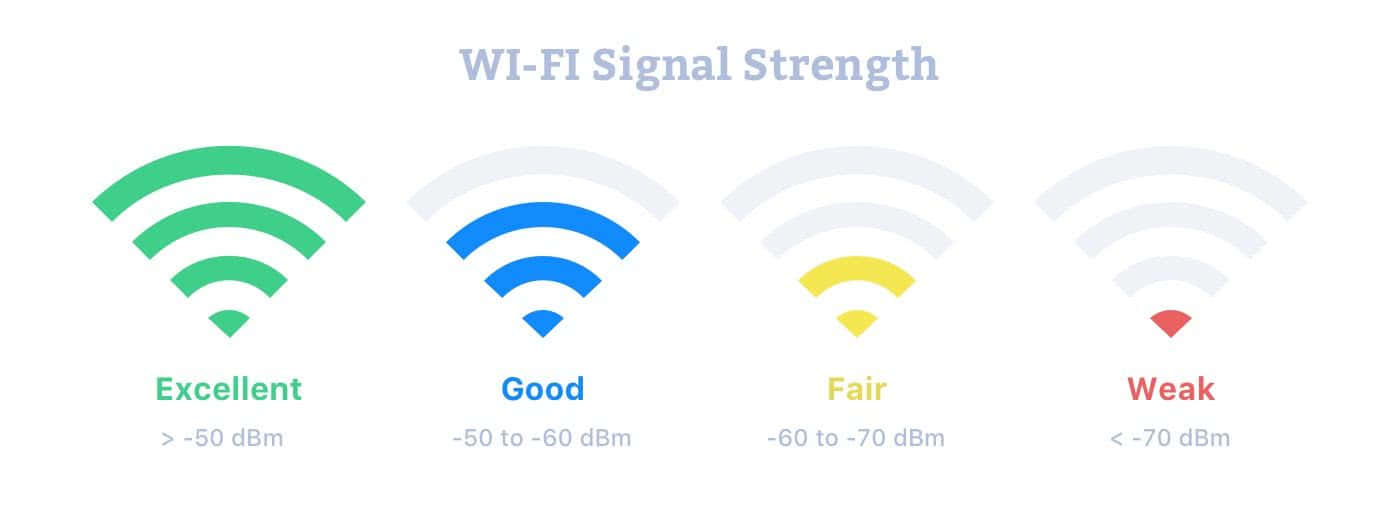
Important: Problems with WiFi have been caused because the provided SSID or password are incorrect. Also the WiFi signal strength should be in the “Good” range to allow for efficient software updates and support.
Note: GBG cannot guarantee the availability of remote support if using cellular (MiFi) devices.

Licensing and configuration
Section titled “Licensing and configuration”Each device requires a license and the device must be configured before using. Use one of the following methods to license and configure your device:
- Create a QR code with your license and configuration settings.
- If you have a support contract, GBG Technical Support can install the license and configure the device remotely.
Contact GBG Support for licensing and configuration
- Go to https://gbgamericas.my.site.com/support and open a support ticket.
- Provide the device’s serial number.
- If licensing is required, provide your activation key or company name.
Software updates
Section titled “Software updates”The AssureID Document Library updates are automatically pushed to any online device every Wednesday at 4:00 AM EST. AssureID Sentinel upgrades are pushed every Tuesday at 2:00 AM EST.
Note: Updates are only downloaded if required. If a device is offline, it will not receive an update.