

Viewing transaction results
The AssureID Connect Workbench application result window contains multiple sections. The main section displays tabs that contain the document images (submitted in the transaction) and a summary of the classification of the document. More comprehensive details of the document fields and authentication tests are available on the individual tabs in the lower half of the Workbench window. For more information about standard fields and authentication tests, see the Concepts Guide.
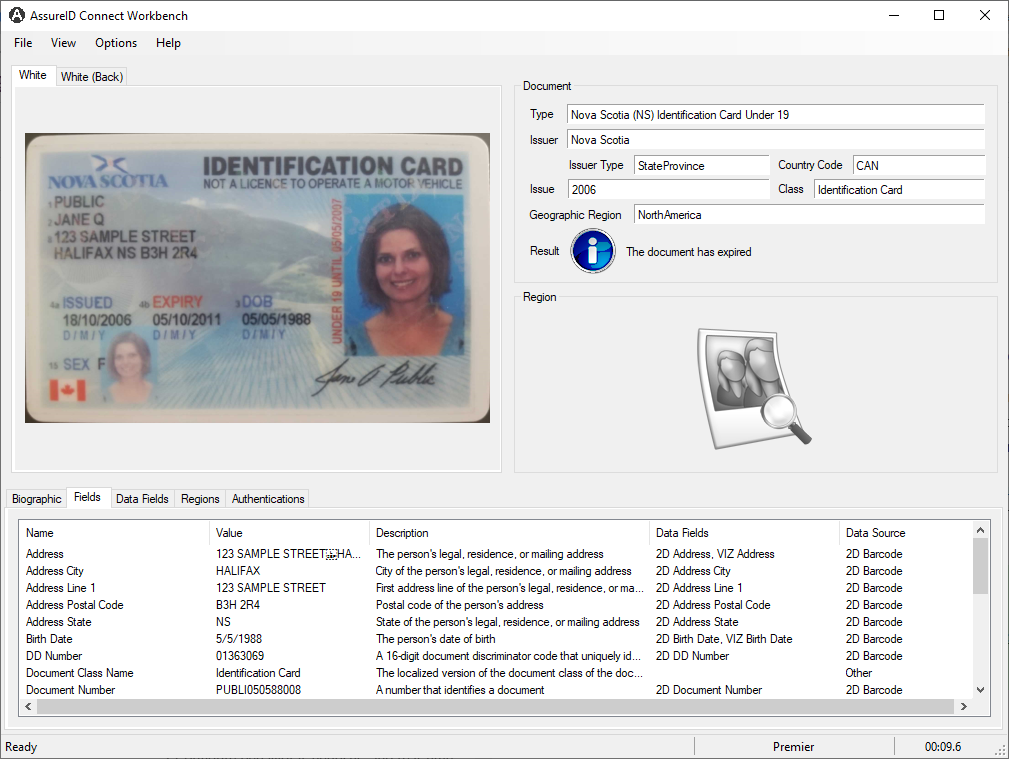
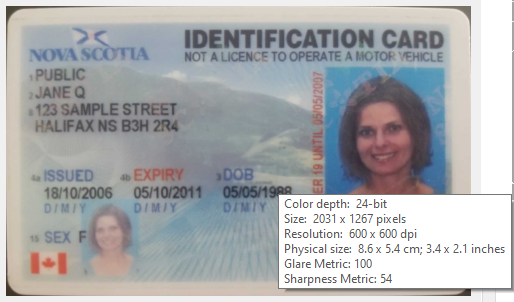
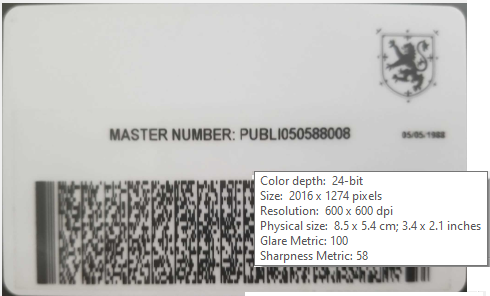
You can hover over each view to see details about the document, such as size and resolution. If you selected the Calculate Image Metrics checkbox when you submitted the images for processing, it will also display the scores for Glare and Sharpness.
GBG IDology recommends a score of at least 50 (with 100 being the least amount of glare and the sharpest image) as an image with an acceptable level of glare or sharpness. See the Concepts Guide for more information about image metrics.
- Glare - Describes the amount of glare on the image and is a measure of light uniformity across the document.
- Sharpness - Describes the sharpness of the image and is a measure of edge contrast across the document.
Details tabs
Section titled “Details tabs”The detailed information for the document is contained in the Biographic, Fields, Data Fields, Regions, and Authentication tabs.
Biographic tab
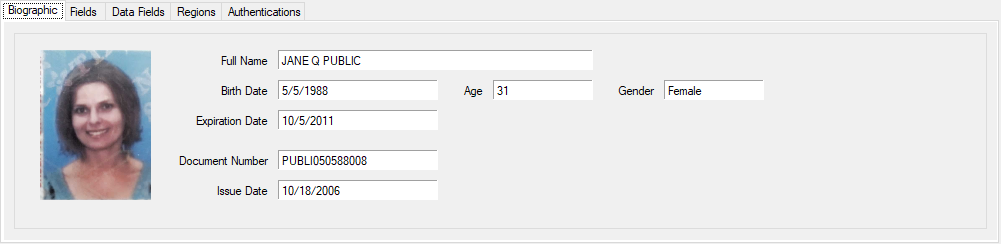
Section titled “Biographic tab”The Biographic tab displays information about the document holder such as full name, birth date, age, and gender. It also shows the document number, the issue date, and the document expiration date.
Fields tab
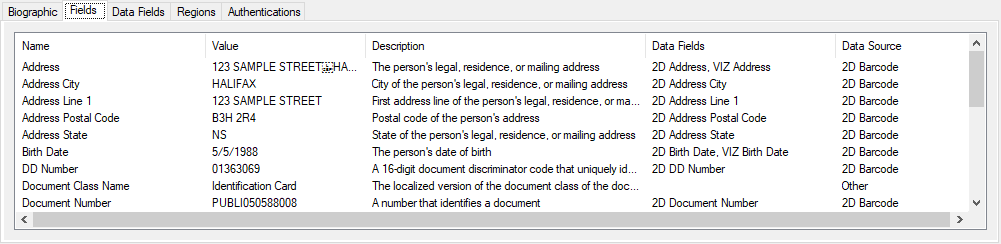
Section titled “Fields tab”The Fields tab lists the fields that were detected on the document. Each field is listed by name and the corresponding value on the document. It also provides a description of the field and the location on the document.
Data Fields tab
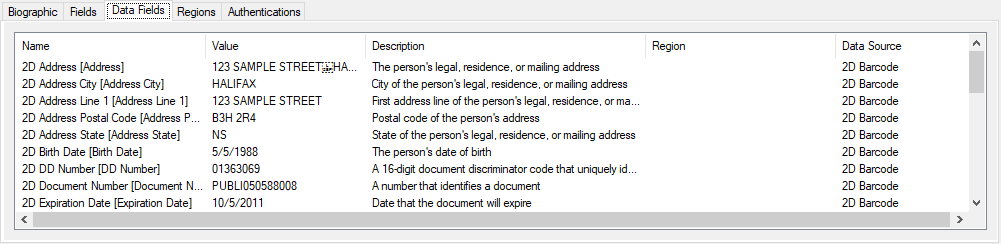
Section titled “Data Fields tab”The Data Fields tab lists the data fields that were detected on the document. Each field is listed by name and the corresponding value on the document. It also provides a description of the field, the region, and the data source on the document.
Regions tab
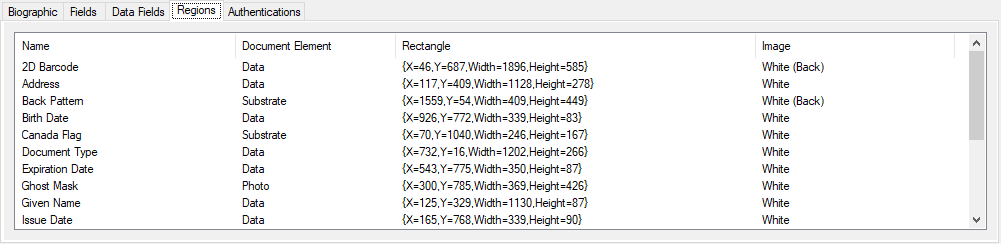
Section titled “Regions tab”The Regions tab displays a list of regions on the document by name, the document element (data, photo, substrate) the location and size (in pixels), and the type of image light source (such as white, white (back)).
Authentications tab
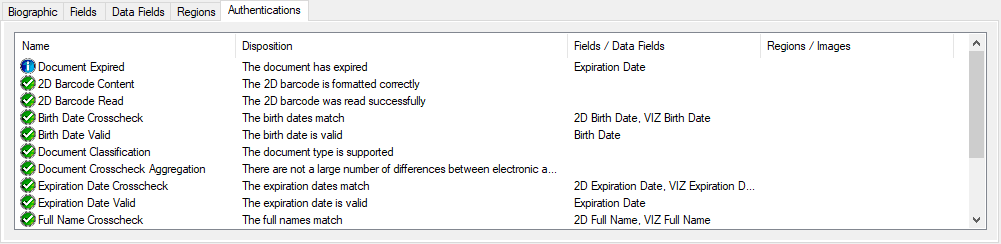
Section titled “Authentications tab”The Authentications tab lists the standard authentication tests performed on the document. The Disposition column describes the result of the tests and crosschecks. The Fields/Data Fields column describes the fields that were used in the test.
Viewing information
Section titled “Viewing information”Click View > Information to open a window that contains Subscription Information, Device Information, and Document Information sections:
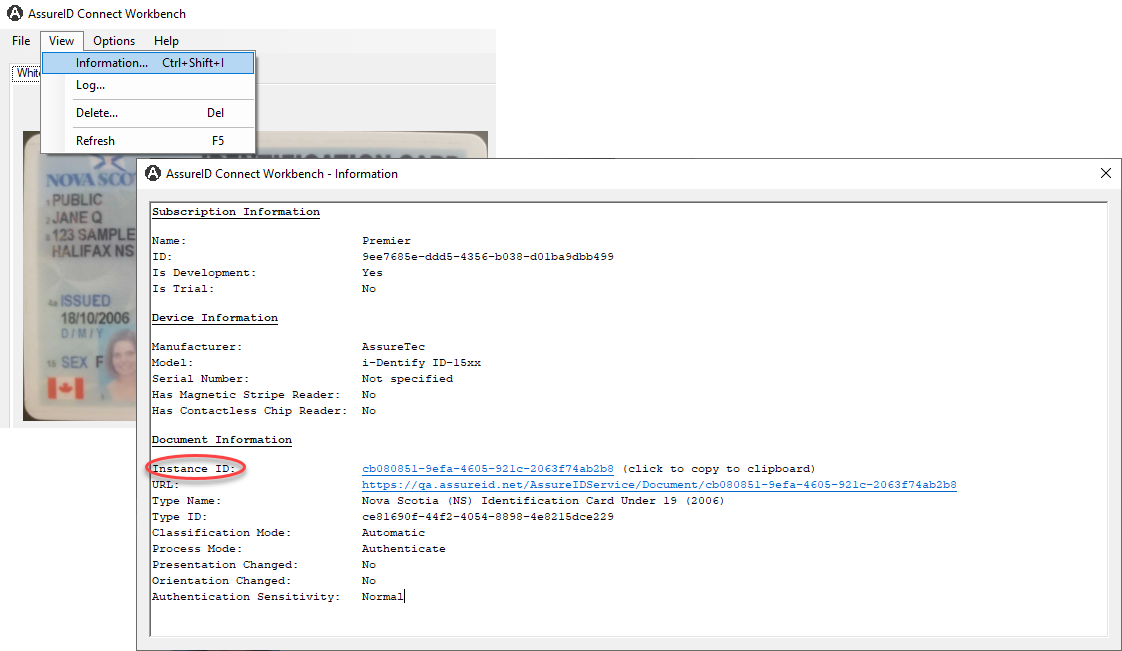
Note: If you subscribe to GBG Review, the Instance ID can be useful for troubleshooting purposes.