

SlibEx library properties
IsNeedCalibration
Section titled “IsNeedCalibration”Retrieves if the scanner needs to be calibrated. This should be tested before every scan. A non-calibrated scanner may generate images with incorrect colors. The property returns a non-zero value if the scanner needs to be calibrated and a zero value if the scanner does not need to be calibrated. Read-only.
IsScannerValid
Section titled “IsScannerValid”Detects if the scanner version is supported by the current code. This property is 0 if the scanner is not supported and non-zero if it is supported. Read-only.
Note: Some TWAIN scanners do not respond to software connectivity checks but are well and truly connected. For those scanners, users can configure a special setting property to ignore the connectivity checks assuming the device is connected.
Ignore connectivity checks
-
Create a TwainScan.ini file in the installation directory.
-
Add a section called
Ignore. -
Add an item called
Scannerand the name of the driver’s source, for example:[Ignore]Scanner = Fujitsu
LastErrorStatus
Section titled “LastErrorStatus”Retrieves the preceding property/command setup. This property is equal to ELIB_ERR_NONE when no error occurred in the previous command execution. This property clears itself automatically to ELIB_ERR_NONE after reading. Read-only.
PaperInTray
Section titled “PaperInTray”Detects if a document exists in the scanner tray. This property is equal to 0 if no paper is detected in the tray or non-zero if paper is in tray. Read-only.
PressedButton
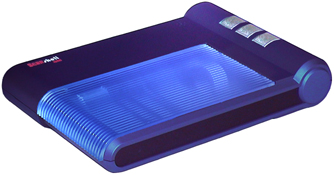
Section titled “PressedButton”Returns the button number that was pressed (valid only when using ScanShell 1000 scanner model). Reads this value after reading the property PaperInTray (that indicates that one of the three buttons of the scanner was pressed) to retrieve which button was pressed:
- TOP_BUTTON
- MIDDLE_BUTTON
- BUTTOM_ BUTTON
Resolution
Section titled “Resolution”Retrieves the scanner resolution settings and sets the scanned image resolution. The resolution value can be any integer in the range 50–600 (for 50-600 dpi). Trying to set a value outside this is rejected and the previous value is used. The internal image resolution can be modified after the scan using the ReformatImage function. Read-only.
ScanHeight
Section titled “ScanHeight”Sets and retrieves the scan height (in 1/100 inch units). Range is 200–400 milli-inches. Read/write.
When using scanner models ScanShell 800xx/2000xx/3000xx, the scanner may also scan a document with an unknown size. In this mode, the scanner scans the document until it detects that the entire document has been fed into the scanner. Then the black borders of the image are automatically cropped and the resulting image is returned to the calling application. To trigger this feature, you must set both ScanHeight and ScanWidth properties to –1. When the scan completes, these properties will reflect the detected document size in milli-inches.
Note: If you use Auto-detect scan size*,* make sure to set ScanHeight and ScanWidth with –1 before each scan because these properties are overwritten automatically with the recently scanned document size.
ScannerColorScheme
Section titled “ScannerColorScheme”Sets the scanned image color scheme. The internal image color scheme can be modified after the scan using the ReformatImage function. Read/write.
Available values are:
- BW
- GRAY
- TRUECOLOR
ScanWidth
Section titled “ScanWidth”Sets and retrieves the scan width (in 1/100 inch units). Range is 200–600 milli-inches. Read/write.
When using scanner models ScanShell® 800xx/2000xx/3000xx, the scanner may also scan a document with an unknown size. In this mode, the scanner scans the document until it detects that the entire document has been fed into the scanner. Then the black borders of the image are automatically cropped and the resulting image is returned to the calling application. To trigger this feature, you must set both ScanHeight and ScanWidth properties to –1. When the scan completes, these properties will reflect the detected document size in milli-inches.
Note: If you use Auto-detect scan size*,* make sure to set ScanHeight and ScanWidth with –1 before each scan because these properties are overwritten automatically with the recently scanned document size.
ScannerType
Section titled “ScannerType”Retrieves the scanner type. The scanner type can be one of these values:
| Value | Description | Value |
|---|---|---|
| 0 | No scanner | 19 |
| 1 | ScanShell 600 | 20 |
| 2 | ScanShell 800 | 21 |
| 3 | ScanShell 800N | 22 |
| 4 | ScanShell 1000 | 23 |
| 5 | ScanShell 2000 | 24 |
| 6 | ScanShell 2000N | 25 |
| 7 | ScanShell 800E | 26 |
| 8 | ScanShell 800EN | 27 |
| 9 | ScanShell 3000DN | 44 |
| 10 | ScanShell 4000 | 28 |
| 11 | ScanShell 800G | 29 |
| 12 | ScanShell 5000 | 30 |
| 13 | i-Dentify ID-150 | 31 |
| 14 | ScanShell 800DX | 32 |
| 15 | ScanShell 800DXN | 33 |
| 16 | SnapShell (FDA) | 34 |
| 17 | SnapShell (WMD) | 35 |
| 18 | SnapShell (TWN) | 36 |
Version
Section titled “Version”Retrieves the SlibEx version. Read-only.