

Installing the SDK and device drivers
Use the following procedure to download and install the AcuFill SDK and device drivers. There are two versions (x86 and x64) of the AcuFill SDK installer.
Download and install the AcuFill SDK
-
Go to https://downloads.acuant.com.
-
Click the Downloads link.
-
Go to the AcuFill Local SDK or AcuFill Local x64 installer section.
-
Download and run the sdk_setup_is.exe or the sdk_setup_x64_is.exe file.
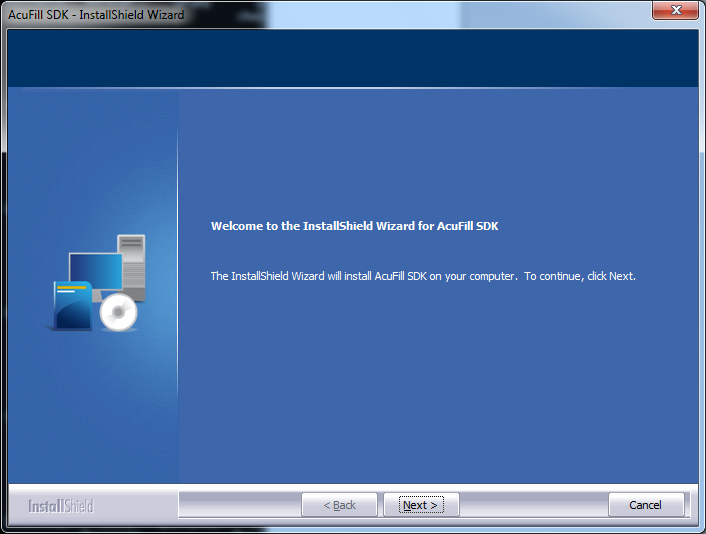
The AcuFill SDK – InstallShield Wizard opens:
-
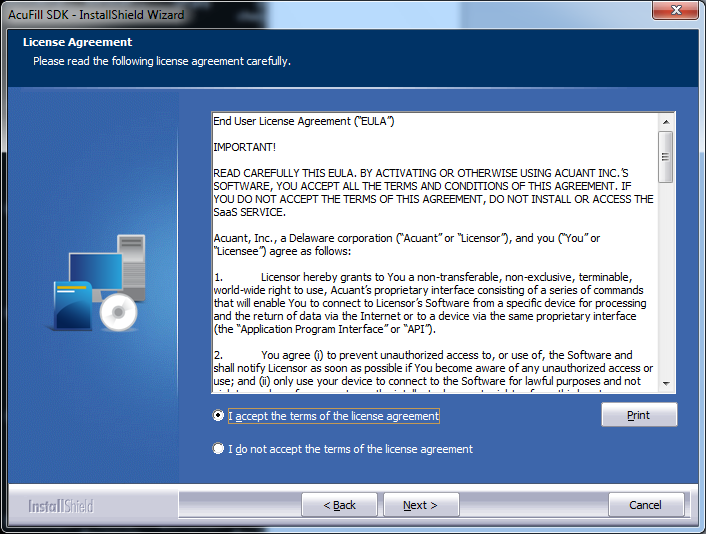
Read and accept the license agreement by checking the I accept the terms of the license agreement and then click Next.
-
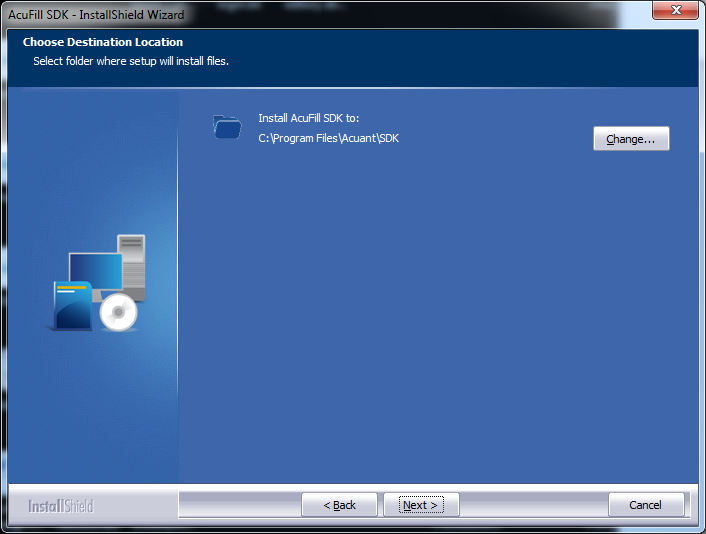
Use the default installation directory (recommended) or click Change to select a different destination. Then click Next.
-
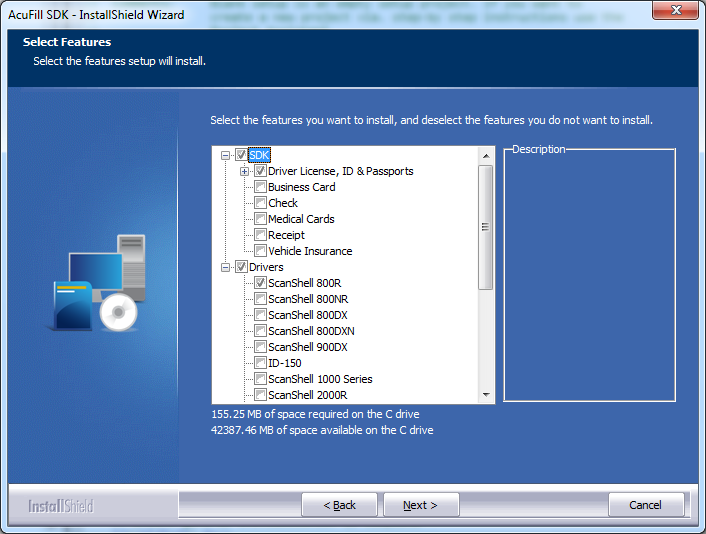
Select the components and the driver(s) for the hardware device(s) you want to install. By default, the ScanShell 800R and SnapShell Camera is selected for the default set of drivers to install. If you are using a device that does not appear in the list and if it is a TWAIN device, then select the TWAIN Scanner using Activation key option. Then click Next.
-
Click Install to continue the installation.
-
When the installation is complete, click Finish.
-
Connect the scanning device to your computer. If the device is provided by GBG and you have the correct drivers installed, the device will be listed in Device Manager under USB or Imaging Device after you connect it.
Important: GBG recommends connecting the device to the back side of the computer, rather than using a USB hub or to the front side of the computer, to ensure that the device has enough power for scanning.