

Software Settings
The backend settings are where some of the configurations can be changed to the best suit the needs of the business.
The settings such as: DB Provider, Server Options, Authentication Module, Ldap Server Settings, Auto Report Settings, FTP Reports, and the IESA Option for Scanners can be configured.
To access the backend settings please find the path:
C:ProgramDataIDScanIDScanEnterpriseBackendSettings.xml
Once the Backend Settings xml file is open, the following page is shown:
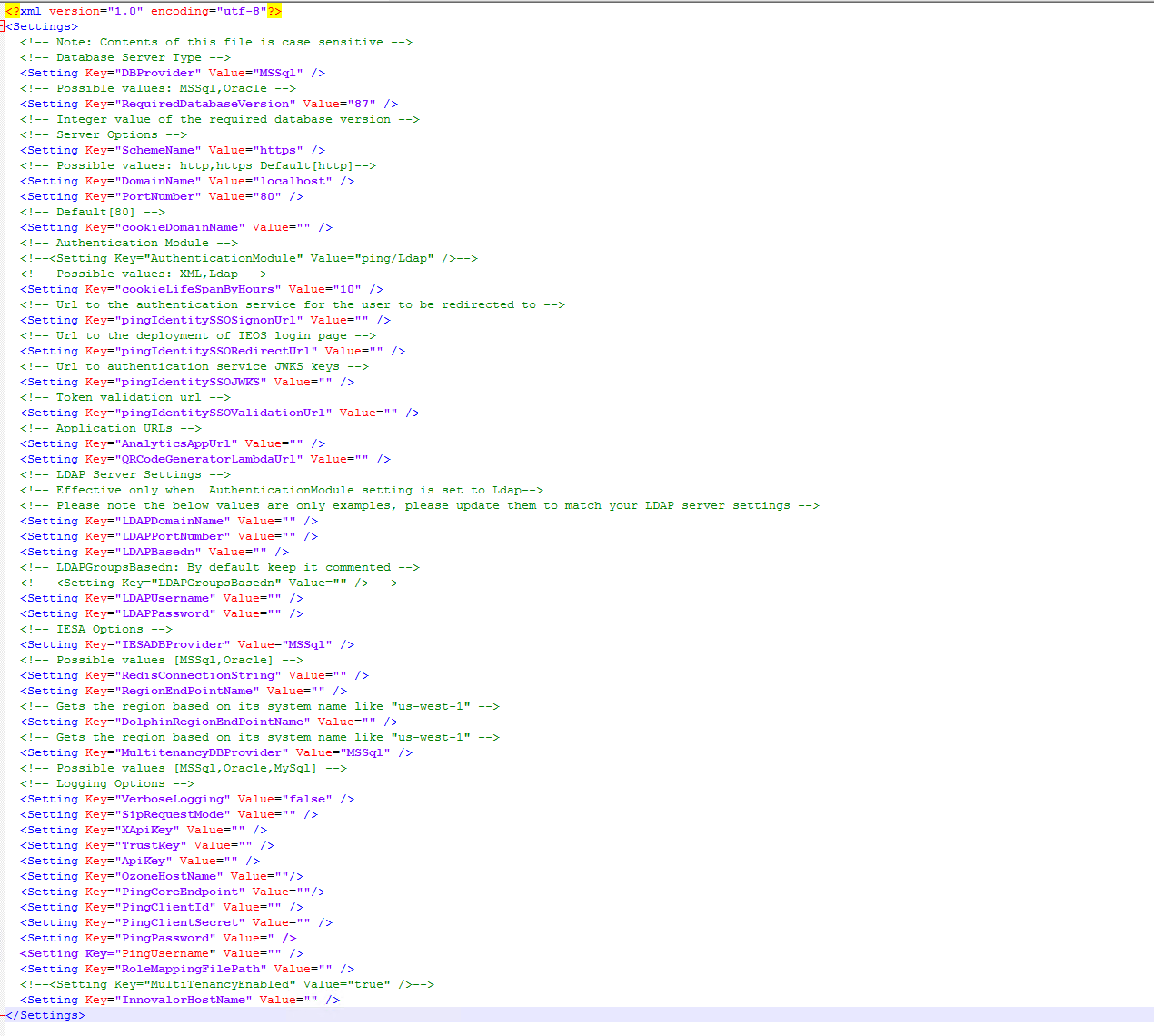
Click for larger view
Database Provider
Section titled “Database Provider”The Data Base (DB) provider is the program in which the business decides to run the database scripts on. As a default option is MsSQL, however to use Oracle simply change the “DBProvider” key value from “MSSql” to “Oracle” as shown below:

Load Balancer Server Options
Section titled “Load Balancer Server Options”In order to be able to use load balancer, the server options and keys can be configured from the path:
C:ProgramDataIDScanIDScanEnterpriseBackendSetting.xml
In the XML file Server Options section, the following values can be configured: Scheme Name, Domain Name and Port Number. The default values are shown below:

Please bear in mind that, the value of “DomainName” key should be an IP address.
Authentication Module
Section titled “Authentication Module”The default authentication module is set to XML; however, it can be changed to LDAP if required. To change the authentication Module, go into the ‘BackendSettings.xml’ file located in:
C:ProgramDataIDScanIDScanEnterpriseBackendSettings.xml
There is an option to change the authentication module configuration to either XML or LAP as explained in the below methods.
XML Configuration
Section titled “XML Configuration”The default authentication module is set to XML. In order to check that, go into the ‘BackendSettings.xml’ file Located in:
C:ProgramDataIDScanIDScanEnterprise
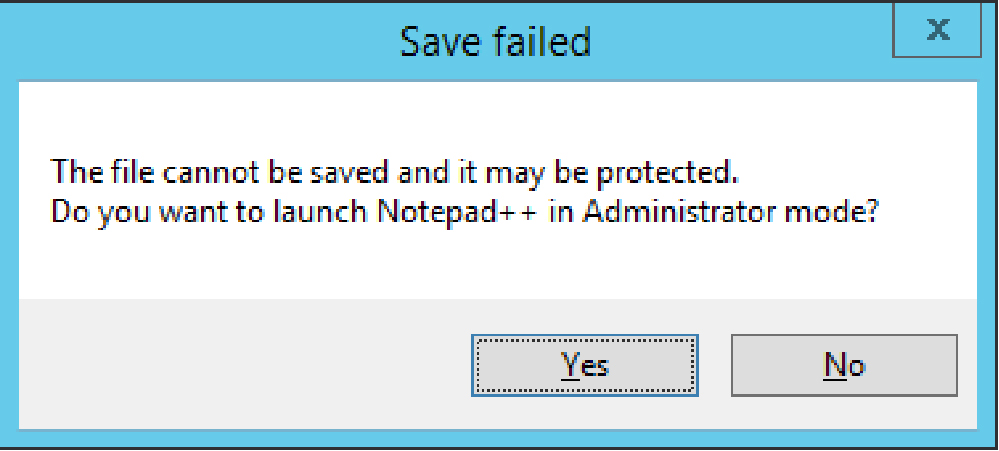
Change the Authentication Module value to ‘XML’, if needed and save the file. If the below alert appears, press ‘Yes’ and save again, to ensure it has been successfully saved (GBG recommends the Notepad ++ editor).
LDAP Configuration
Section titled “LDAP Configuration”To change the authentication Module to LDAP please open the ‘BackendSettings.xml’ file located in:
C:ProgramDataIDScanIDScanEnterpriseBackendSettings.xml
Once the Authentication Module value has been changed to ‘LDAP’ in the ‘BackendSettings.xml’ file please add the following setting key into it:
<Setting key="RoleMappingFilePath"value="C:ProgramDataIDScanIDScanEnterpriseRoleMappingFile.xml" />This is shown below:

Please create a RoleMappingFile.xml using the template below, where you can add extra user roles such as ‘Report Module’ and ‘Admin Module Users’, and save in:
C:ProgramDataIDScanIDScanEnterprise
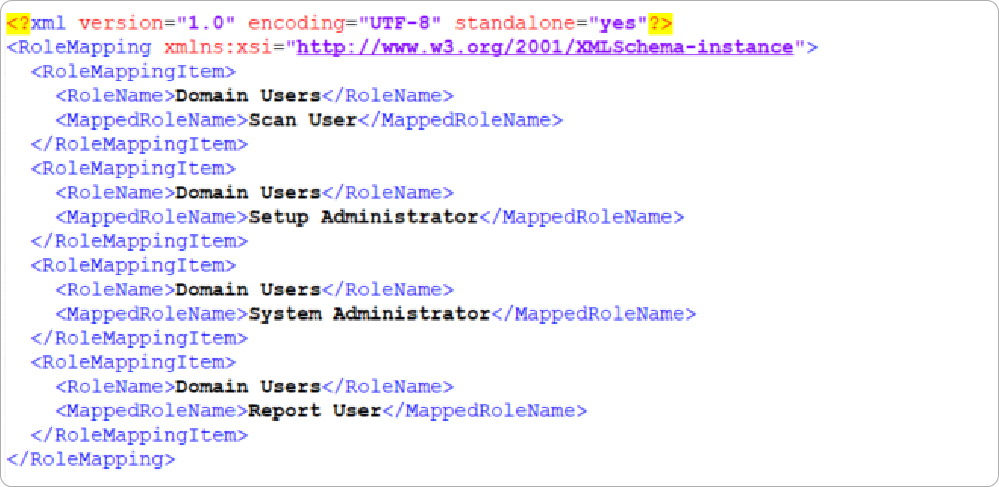
Update the below using your domain values:

After changing backendsettings.xml, and completing all necessary changes please restart the IIS.
Database Configuration:
Section titled “Database Configuration:”Based on the configuration in database, if any of the following checks failed or skipped then both journey and document validation will refer.
- FirstName Cross Reference;
- BirthDate Cross Reference;
- LastName Cross Reference;
- ExpiryDate Cross Reference;
AlwaysContinueJourney : This configuration allows user to continue to the journey even if the document is not supported.
IESA Options
Section titled “IESA Options”If scanner will be used with Redis in Multitenancy, then “IESADBProvider” key value should be set to “Redis”. Meanwhile “RedisConnectionString” key value should be set as well.