

Using the SDK
Import MJCS SDK into the project
Section titled “Import MJCS SDK into the project”- Inside the provided package, there’s a folder called SDK.You would then see 3 folders that includeMJCS.framework
- Release-iphoneos: includes only iphone architectures
- Release-iphonesimulator: includes only simulator architectures
- Release-iphoneuniversal: includes all of the above. Please be aware that Apple does not allow submitting simulator architectures to the AppStore, hence they should be stripped before the submission.
- Depending on your needs, select the right SDK and copy it into your project directory.
- Import MJCS.frameworkinto your Xcode project.
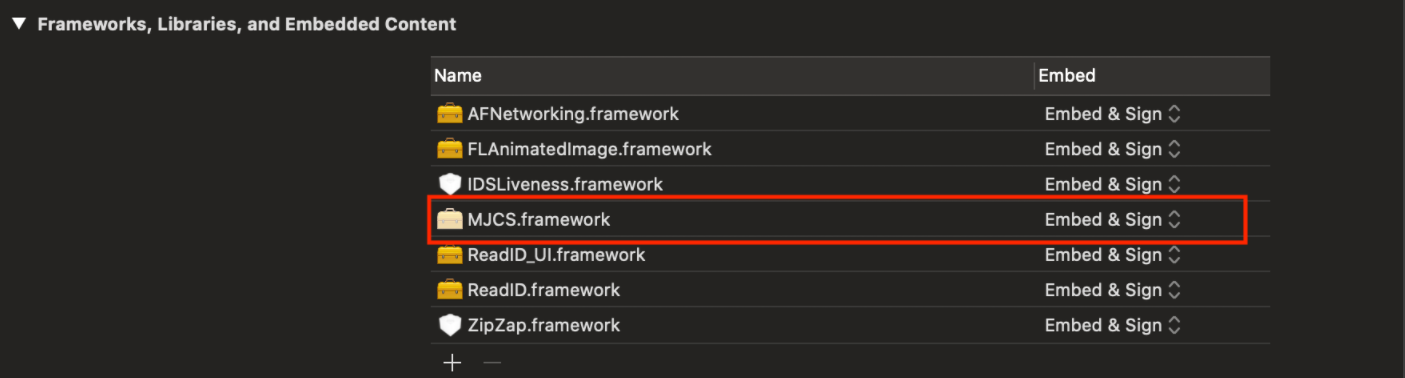
- Make sure that it’s being Embedded & Signedunder your target settings:
Import additional GBG IDscan dependencies
Section titled “Import additional GBG IDscan dependencies”- Some additional dependencies are required to be added to your project for MJCS to be able to work, for example ReadID.framework, which is responsible for accessing the Biometric Chip.
- Inside the provided package, there’s a folder called **Dependencies.**Copy all of these dependencies into your project folder.
- Import them into your Xcode project
- Make sure that they are all Embedded & Signedunder your target settings
Import open-source 3rd party dependencies
Section titled “Import open-source 3rd party dependencies”- MJCSrequires some 3rd party dependencies in order to perform certain operations.
- Inside the provided package, there’s a file called **Cartfile.**It contains the dependencies we may require and minimum versions.
- Cartfileadheres to Carthagedependency manager, hence you could import these into your own Cartfile. Alternatively, you could either download binaries from github repositories manually and import them into the project or use your own dependency managers, such as Cocoapods.
Complete dependency list
Section titled “Complete dependency list”Please find a table below of the dependencies, that MJCS is using:
| Name | Required? | Used by component | Location |
|---|---|---|---|
| AFNetworking | YES | MJCS | https://github.com/AFNetworking/AFNetworking |
| FLAnimatedImage | NO | IDSLiveness | https://github.com/Flipboard/FLAnimatedImage |
| IDSLiveness | NO | MJCS | Inside SDK folder, comes as a separate package |
| Lottie | YES | MJCS | https://github.com/airbnb/lottie-ios |
| MJCS | YES | Inside SDK folder | |
| ReadID, ReadID_UI | NO | MJCS | Inside Dependencies folder |
| ZipZap | YES | MJCS | https://github.com/pixelglow/ZipZap |
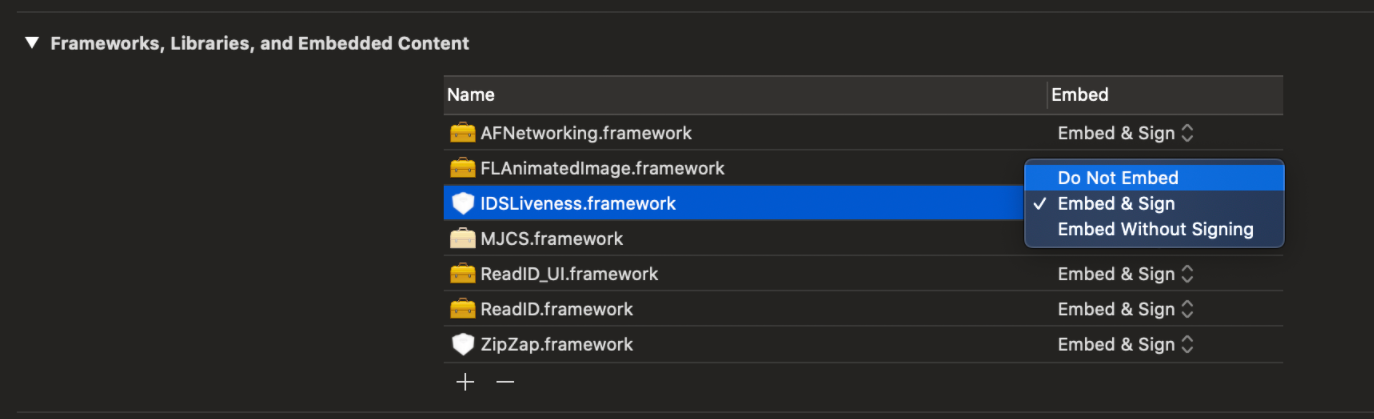
You may notice, that some dependencies are not required. That means, that if you don’t use certain functionalities, you can save size and do not embed them into your app. For example, if you don’t need Liveness step during your on-boarding journey, you can exclude IDSLivenessand FLAnimatedImagefrom your app build. To do so:
- Go to your target settings
- Select the dependency you don’t want to include
- Select Do not Embedoption from the dropdown list
Info: If you try access certain functionalities during the runtime and dependency was not included – it will likely result in a crash
Choosing the right Document Profile
Section titled “Choosing the right Document Profile”As MJCS is using Machine Learning to classify documents on the device itself, we require those models to be present on the device during the runtime and it comes with a price of size. In order to save the size, we are able to split those resources by country or create a customised resources package for you.
In order to start using the SDK, you need to choose 1 default profile from the provided list to you by the GBG Account Manager. Afterwards:
- Take provided zip file
- Rename its name to IDES-default-profile.zip
- Add it to your Xcode project
- Once you load MJCS, unless specified otherwise, MJCS will look for this package.
For more information please refer to Hot-Swapping functionality.
Required permissions and entitlements
Section titled “Required permissions and entitlements”MJCS requires certain permissions to be enabled either in your project settings, please find a table below describing it:
| Permission | Location | Note |
|---|---|---|
| <key>NSCameraUsageDescription</key> <string>Uses camera to capture documents</string> |
Info.plist | Required for document capture/Liveness components |
| <key>NFCReaderUsageDescription</key> <string>Uses NFC reader to scan document chip</string> <key>com.apple.developer.nfc.readersession.iso7816.select-identifiers</key> <array> <string>A0000002471001</string> <string>A00000045645444C2D3031</string> </array> |
Info.plist | Only required when NFC module is used |
| Near Field Communication Tag Reading | Provisioning Profile Capabilities | To add such capability, the easiest way is to go to your Target Settings/Signing & Capabilities/ Choose to add Near Field Communication Tag Reading |